Conversations: Source, Status, Reassign, Mention
Last updated: September 16, 2026
All
Conversation Dashboard
The conversation dashboard is where you will spend your working day. All requests here have either been escalated to you specifically or your team, you've been mentioned, or have raised it yourself. The Servicedesk has four dashboard views:
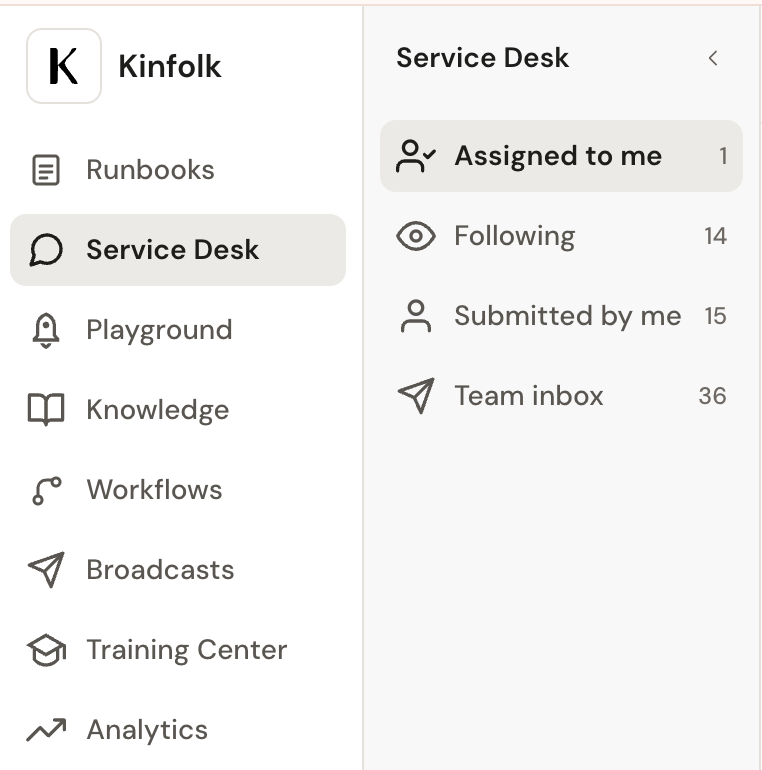
Assigned to Me
Requests assigned to you (by someone else, the escalation rules, or you've assigned to yourself)
Following
Any query you've been '@' mentioned in by someone/another team, or queries you have submitted (you become default to following)
Submitted by me
Requests that you have submitted (either via Slack or manually)
Team Inbox
All requests your team(s) is responsible for (based on category and escalation rules).
Available Filters
In any view, you can filter each tab by Status, Priority, and Due Date, as well as search by any words in requests, plus the Submitter of the request, and the Assignee (i.e. team members who have requests assigned to them) and request number. In the 'Team Inbox' tab, you can filter by team (relevant for Superadmins, and admins across multiple teams).
Statuses
Statuses show where a request sits in the resolution process, so you can see at a glance what needs your attention versus what's waiting on someone else. Requesters never see these statuses themselves.
New | Escalated but not yet assigned to anyone |
Assigned | Assigned to a team member |
Waiting for the submitter | Pending a reply from the submitter |
Waiting for third party | Pending input from someone outside your team or org. Unlike the other statuses, this one is set manually by the assignee, not triggered automatically. |
Automated | Kin is handling the conversation. This holds for a 30-minute window, after which the request moves to New if it's been escalated, or Closed if the requester hasn't asked anything further. |
Closed | Resolved, either by a team member or by Kin |
Waiting on you | The requester has replied, and it's your turn to respond |
Delegated | If a Jira integration has been set, any escalated conversation will show as 'Delegated' and remain in this status. |
An "Open" status covers any request that isn't Closed: Waiting for Submitter, Waiting on You, Waiting for Third Party, Assigned, and so on.
Automatic status transitions
Statuses change automatically based on activity:
When a 'new' request gets assigned to a team member → status changes from New to Assigned
When the assignee sends a message (reply) and is waiting for the employee to respond → status changes from Assigned to Waiting for submitter
When the submitter replies to a request → status changes from Waiting for submitter to Waiting on you
When a request is 'Closed ', the submitter will receive a CSAT survey to 'Rate the response of the People Team'.
When a requester replies to a closed request → status changes from Closed to Waiting on you, and the person initially assigned will be notified to pick back up the conversation.
A callout
Resolution SLA timers pause automatically while a request is waiting for the submitter. This ensures your SLAs reflect actual working time, not time spent waiting for the employee to respond. For more about SLAs see here.
A typical conversation lifecycle:
New → Assigned → Waiting for submitter ↔ Waiting on you → Closed
Source
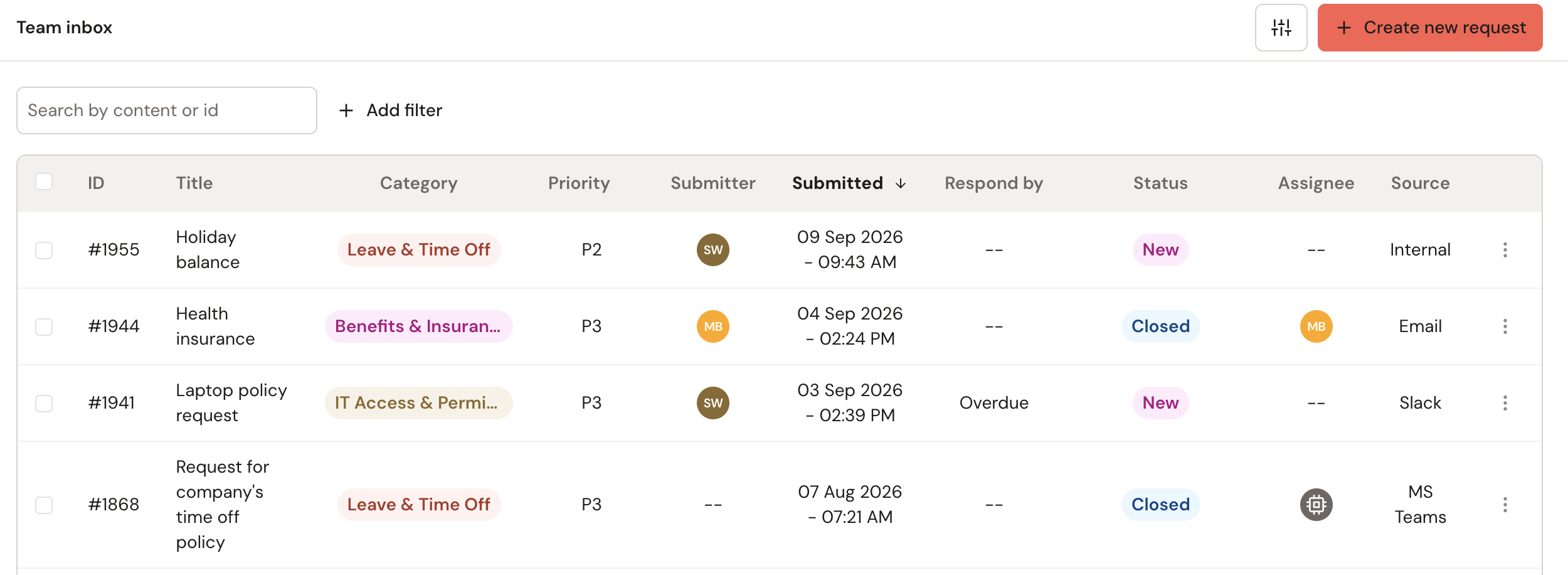
The source of a conversation shows on the far right of the dashboard. "Internal" means a request created directly in the backend, with no AI involved — Kinfolk users can use this for team-to-team requests (e.g. the People team submitting a request to another internal team). These show as "Manual" on the reporting dashboard.
Manually creating a request
The 'create new request' feature will allow you to drop the request directly to the team and select the most suitable category. Once you've done this, it will show on your 'Submitted by Me' tab.
Reassigning a request
Occasionally, something may land with a team it shouldn't. Two things need to happen;
To reassign:
Clear any name in the Assignee field.
In the Assigned Team field, remove your team and search for the correct one.
Choose the category that team owns from the dropdown (the receiving team can adjust it if needed).
Save.
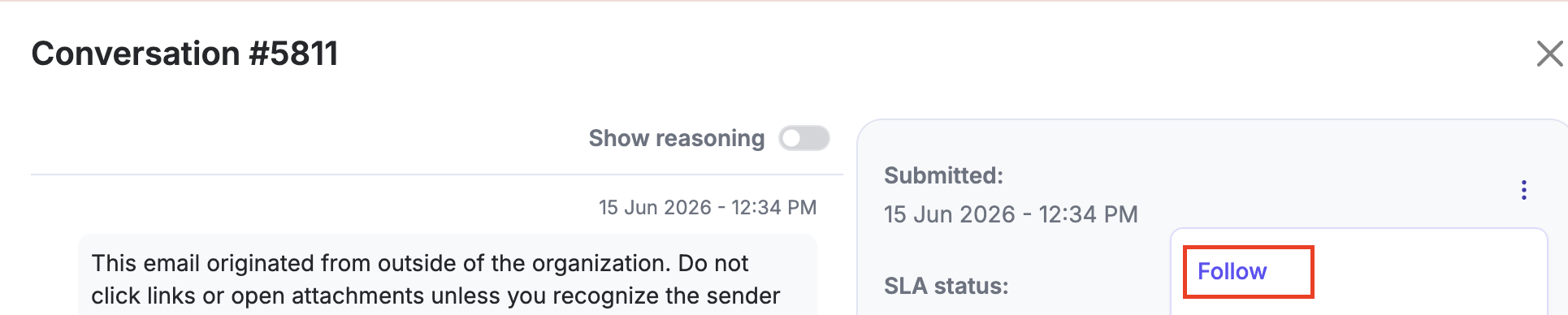
This transfers the request to the selected team, who are notified and can review and handle it. You lose visibility of the conversation once you reassign it, unless you hit Follow first.
If your team owns the request but just needs input from someone else, mention them in the note section instead of reassigning (see 'Bring someone into a request', below).
Flag a conversation
Any member can flag a conversation, at any status, if something about it doesn't look right. Flagging moves it to the Training Center's To Review tab for correction. You can add a reason or context, which is surfaced to whoever handles the correction.
Bring someone / a team into a request
Bring someone into a request
The Notes section is internal-only: use it to discuss a request with your team, leave comments, and bring in anyone who wouldn't otherwise have visibility, because they're not on your team. None of this notifies the requester.
Mentioning someone (an individual or a team) notifies them via Slack DM in the Kin app, and moves the request into their Following tab, where they can unfollow if it's no longer relevant to them.
For example:
* "@Payroll can you confirm the policy?"
* "@Sarah can you advise?"