Kin Settings: Configure the Service Desk
Last updated: September 16, 2026
Superadmins
Under Kin settings, Superadmins configure how Kin behaves as your service desk: how it responds in Slack channels (reply triggers), what response and resolution targets it's held to (SLA policy), and how it handles requests that go quiet (stale conversations) These settings live together because they all shape the same thing from a requester's point of view: how fast, and how consistently, they hear back.
How to configure reply triggers
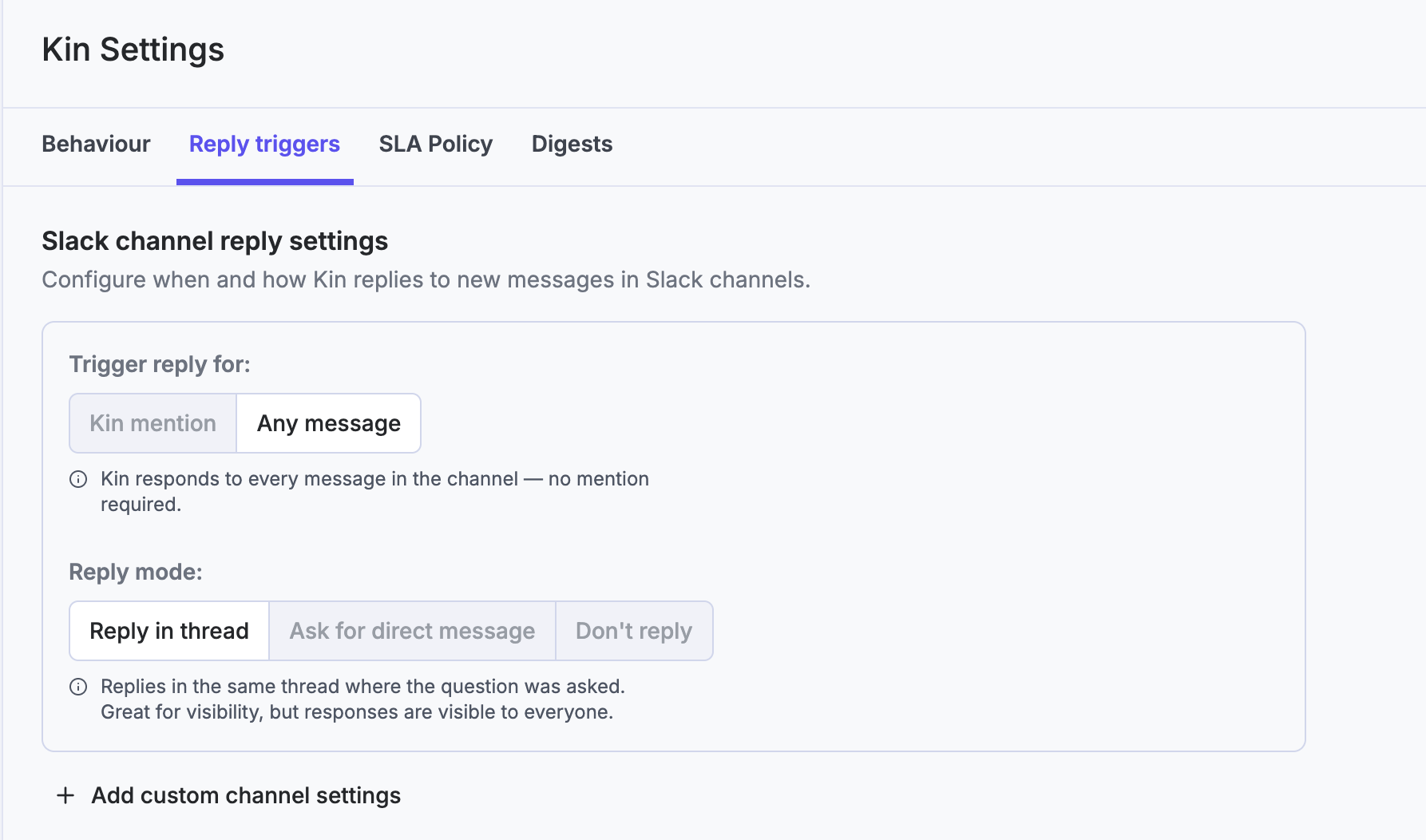
1. Choose Kin's default behavior: respond automatically to any question posted in a channel, or only respond when actively @-mentioned.
2. Override/customise this behavior per channel (where Kin is added) where needed (e.g. an onboarding channel may need different behavior than the rest).
How to configure SLA Policy
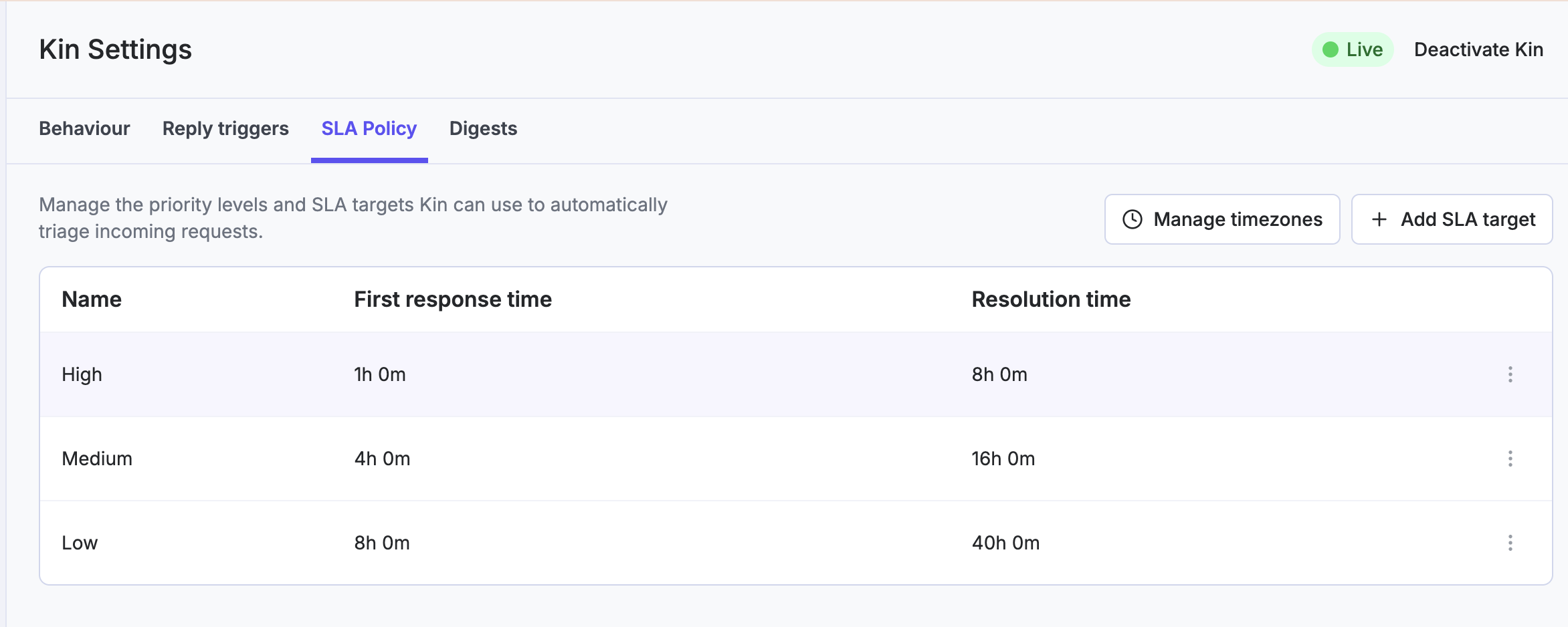
1. Set response and/or resolution time targets per priority level. You can commit to first-response time only, resolution time only, or both. This choice affects reporting and SLA breach notifications.
2. These targets attach to category descriptions, and the AI agent prioritizes requests accordingly.
3. The SLA clock counts in business hours, calculated in the requester's local time zone, from when they submitted the request. It pauses while a request is waiting on the requester to reply and resumes once they respond, so time spent waiting on the requester doesn't count against your team.
Organisations can define their SLA targets, as this will vary from org to org, depending on size and capacity and time zones they operate in.
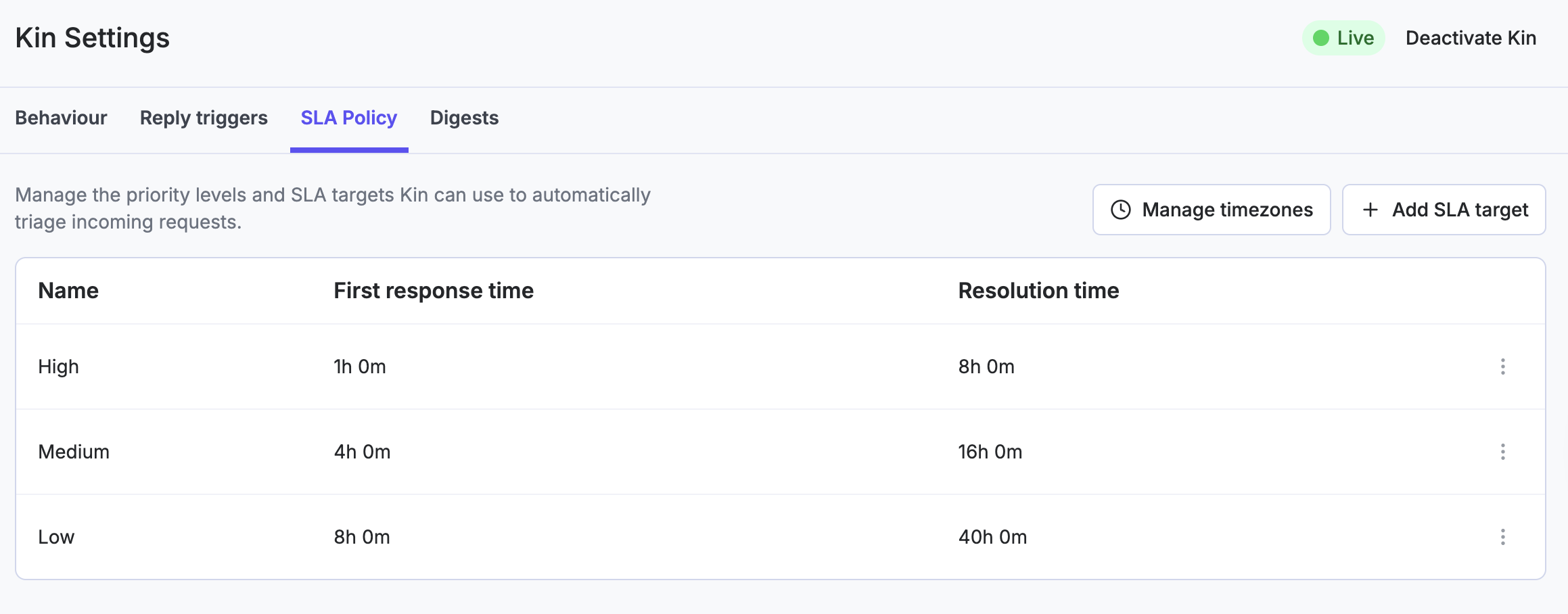
Based on the above configuration, 'high-priority requests' listed in the category description will breach within the hour if not answered, and breach if not resolved within eight hours. The team/assignee will receive notifications with these warnings.
Configure SLA Timezones
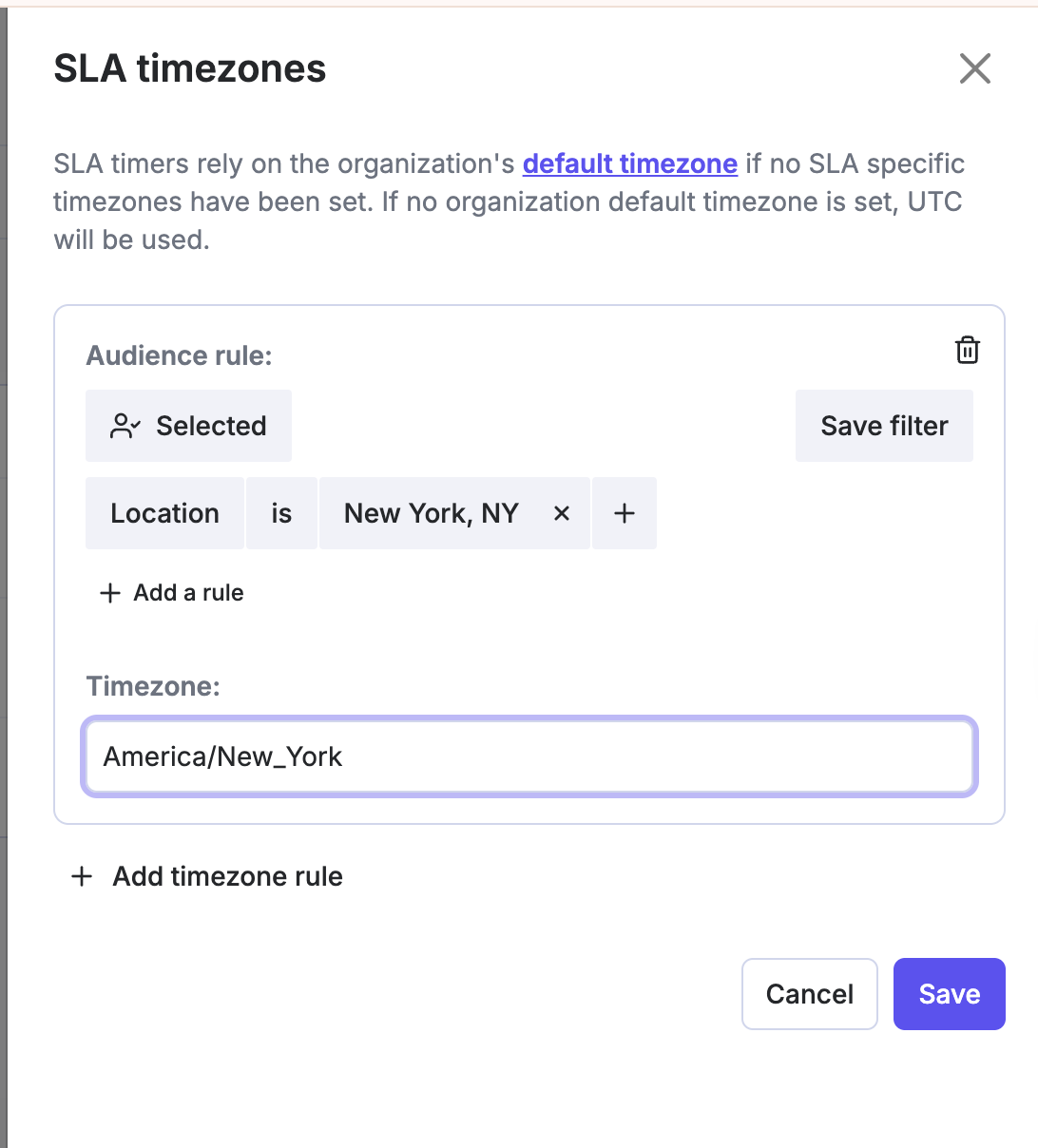
If you are a global organisation, ensure requests have the right SLA based on location by configuring this based on HRIS data (i.e., location is New York) and choosing the corresponding time zone.
Configure Stale Conversations
Stale Conversations helps your team identify and act on open requests that have gone dormant. When a conversation hasn't had activity for a defined period, Kin can automatically notify the submitter or assignee, close the request, and surface stale conversations in your queue and reporting — so nothing quietly slips through. This also ensures teams can keep 'clean queues', as requesters can re-open if they do still need a response.
Go to Agent Settings → Stale Conversations to configure the feature.
The master Enable stale conversations toggle must be on for any staleness logic to run. When disabled, the stale filter on the conversations page and stale counts in the Team Performance report are hidden (FYI; reports refresh every hour, so if you were to toggle stale requests on, it won't show immediately)
Configuration
Setting | What it does |
|---|---|
Enable stale conversations | Master switch. Turns all staleness logic on or off. |
Stale threshold | How long a conversation can go without activity before it's considered stale (e.g. 3 business days). |
Auto-close after | Additional time after a conversation becomes stale before it's automatically closed. Only applies to conversations in Waiting for Submitter status. Optional. |
Nudge submitter | Sends an automated message to the submitter when their conversation becomes stale. You can use the default message to customise. |
Nudge assignee | Sends a Slack DM/app message to the assignee when a conversation stalls on the team's side. |
Important: The stale threshold is calculated in business days.
Default Submitter Nudge Message
The nudge is delivered in the same channel as the original conversation — as a Slack thread reply for Slack conversations, or as an email reply for email conversations.
Assignee Nudge
When a conversation stalls on the team's side, the assigned agent receives a Slack DM/app message with a link to the conversation. This message is not configurable but includes a View request button for quick access and to take action.
When Does the Stale Timer Reset?
A conversation is no longer considered stale when:
The person being waited on replies (e.g. the submitter responds when the conversation is in Waiting for Submitter status)
The conversation status changes (e.g. moves from Waiting for Assignee to Waiting for Submitter)
Closing a conversation — manually or via auto-close — cancels all pending stale timers.
Auto-Close Behavior
Auto-close only applies to conversations in Waiting for Submitter status. Conversations stalled on the team's side are never auto-closed, as this would hide real team-side delays.
When a conversation in Waiting for Submitter crosses the stale threshold:
The submitter nudge is sent immediately.
After the additional Auto-close after period, the conversation is automatically closed.
The submitter receives the standard "This request has been closed" message.
If the submitter replies at any point before auto-close triggers, the timer resets and the conversation is no longer stale.
Filtering Stale Conversations
When Stale Conversations is enabled, a Stale filter appears on the Conversations page. Use it to:
Surface all open stale conversations at a glance
See which team or assignee they're sitting with
Take bulk action (e.g. close or reassign)
The Team Performance analytics dashboard includes stale conversation counts per team, broken down by who the conversation is waiting on:
Metric | What it means |
|---|---|
Stale — waiting for team | Conversations where the support team hasn't responded |
Stale — waiting for submitter | Conversations where the submitter hasn't replied |
Separating these two ensures team performance isn't penalized by submitter inaction.