Categories: Group, Route and Prioritize conversations
Last updated: September 16, 2026
Superadmins + Admins
Overview
Categories are Kin's triage and routing system: they help teams triage, prioritise, and escalate conversations to the right stakeholders. Kin follows the instructions you set in a category's description box to categorise, prioritise, and escalate each conversation according to the rules you've put in place. All of this is controlled through the language and descriptive words in that description box, and can be adjusted at any time.
Categories earn their place because teams usually handle several types of request, each needing a different level of expertise, urgency, or escalation path. Used well, they let you route requests to the correct owning team, apply the right priority and SLA rules, track support trends and common request types (all reporting happens at the category level), surface topics where knowledge is thin, or interest is spiking, and make sure sensitive or specialised topics reach the right stakeholders.
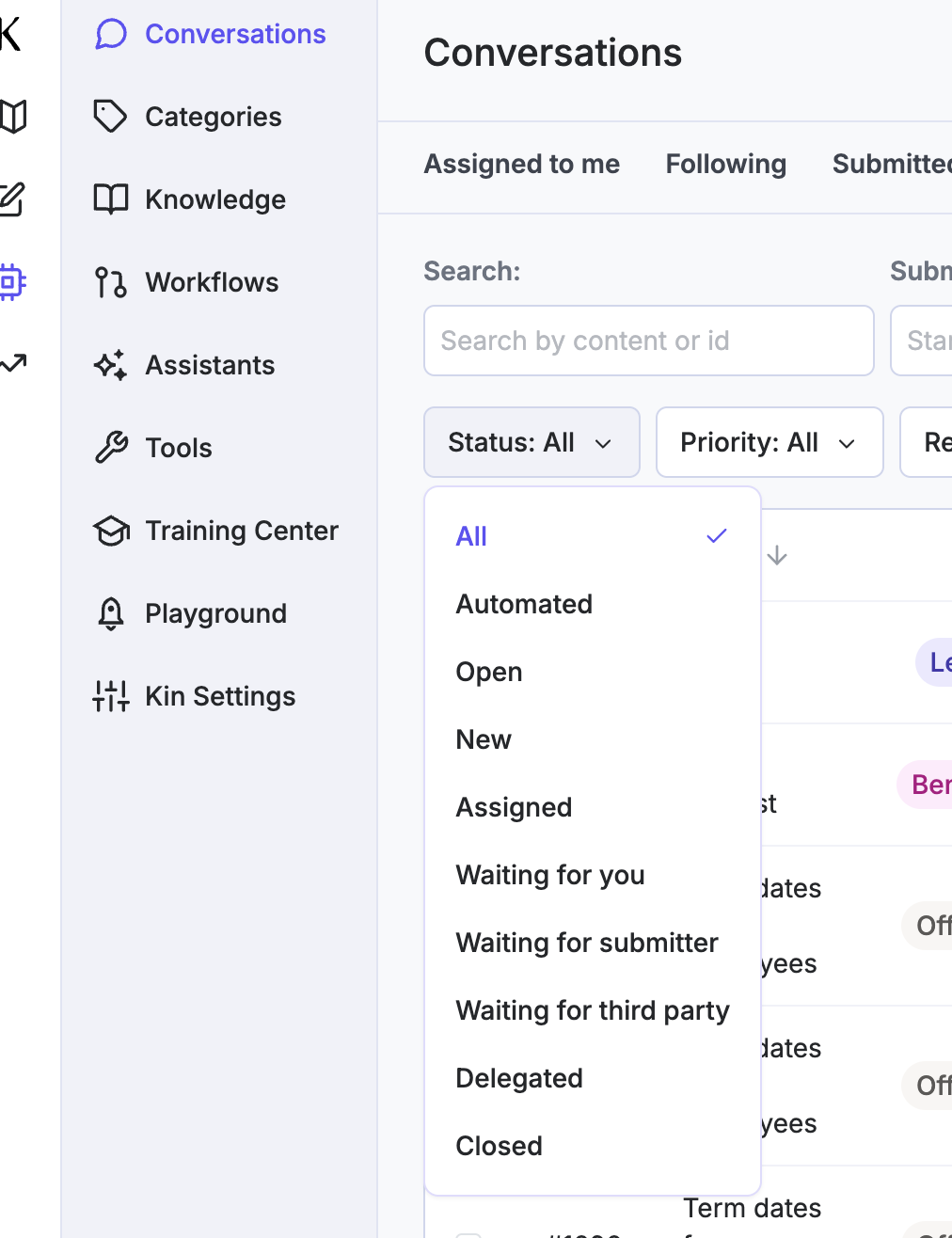
A couple of behaviours worth knowing up front. When a request is closed by Kin, it still pulls through to its category for reporting (shown as closed, with the AI agent as the assignee). Manually created requests skip AI triage entirely: the requester picks the category and team themselves at the time of creation.
How to use categories
Create new category
In the category description box, write the instructions Kin should follow to recognize and handle that type of request. Kin uses this language to decide what belongs in the category, so be descriptive. You can refine the wording at any time.
Set the priority for requests in this category using High, Medium, or Low. The level you choose invokes the relevant SLA, which you configure under Kin settings
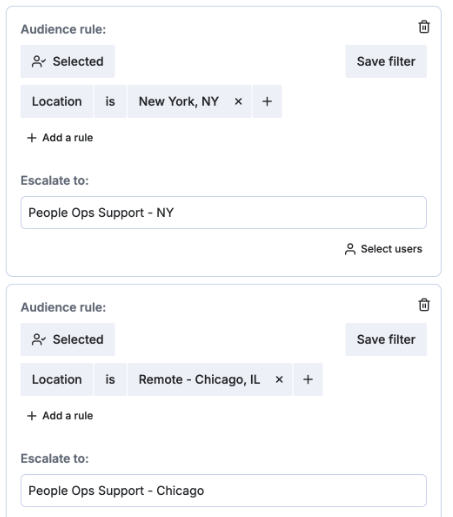
Add escalation rules to control who receives a request once it's been categorized. For each rule, set the Audience (who is raising the request) and the Escalate to field (which team or individual users should receive it on the backend). This routes requests to the right stakeholders based on who submitted them. There's no limit to how many escalation rules you can have in place.
Order your escalation rules from most specific to least specific. They're evaluated top to bottom, so place the most specific or highest-level filters first (for example, separating Tech and Non-Tech audiences before more granular rules).
How categorization and escalation work
Once a request comes in, Kin analyzes the conversation context, automatically categorizes the request, and then uses that category's audience and escalation rules to determine who gets notified.
When a request doesn't match any category, it will fall into the 'uncategorized' queue.
A few call outs
If emails also route into Kinfolk and you're building granular escalation rules, add an encapsulating "Everyone else" rule at the end and choose who those should escalate to (a team or an individual).
If a request lands in the wrong category, you can manually reassign it — but for a longer-term fix, adjust the category wording so Kin categorises it correctly next time.
Teams tend to get the most value by configuring categories that mirror their most common workflows and requests.
Closed requests still report. When Kin closes a request, it still appears in its category for reporting purposes, marked as closed and with the AI agent as the assignee.
Manual requests bypass AI. For manually created requests, the requester selects the category and team themselves at time of creating request — no AI triage is involved.
Category behaviour is language-driven. Because categorisation, prioritisation, and escalation all follow the description-box wording, results are only as good as that wording; expect to iterate on it over time.
Jira Service Management Escalation
If Jira has been connected, you can escalate entire categories to Jira, to a destination of your choosing. Non-escalated requests stay in Kinfolk; only escalated requests show up in Jira.
How escalation → Jira actually flows
When a request is escalated in Kin, it's pushed to Jira and the Kin request moves to a new "Delegated" status.
Non-escalated requests will remain in Kinfolk; only escalated requests will show in Jira.
Once delegated, Kin does nothing further with the request — all the work (assignees, comments, notes, status changes) happens on the Jira side by your team. What does sync over initially is any attachments and the Slack thread history.
Bidirectional comment sync: Internal comments added in Jira appear in Kin notes section, and comments/messages from Kin (including the Slack thread) sync into the Jira issue. Note: JSM doesn't support threaded messages, so the Slack thread comes through as synced comments/notes rather than a thread.
For the first release, the comments from the requester will show as 'Internal Notes'
How to set up per-category routing.
For each Kinfolk category you want to route, toggle 'Escalate to Jira', pick the destination project and issue type. For a JSM project, also select the queue. For a Jira Software project, optionally select an Epic the issues should sit under.
Map statuses. Configure the Delegated status mapping. All requests which are escalated to a category delegated to Jira will have the 'status' as Delegated, with the assignee 'Jira', but here you can decide how requests show in Jira boards i.e. To Do / In Progress / Review / Done, etc. since every org names these differently.
Once live, when a Kin request is escalated, it's created as a Jira issue in the routed project; agent replies sync between Jira and Kinfolk (and, for JSM public replies, into Slack) automatically.
A few callouts
For Jira Service Management customers, always set the queue when configuring routing. Skipping it is the classic "the ticket was created but IT never saw it" failure.
Closing the Jira issue doesn't sync that status back to Kinfolk, so no CSAT message is triggered for the employee.
Jira Service Management's public "Reply to Customer" routes to Slack, not to Kinfolk notes, by design, so requesters see replies in their original thread.
Once a request is delegated to Jira, it isn't captured in Kin's reporting the way a normal escalation is.
However, Unless a category routed to Jira is also flagged as sensitive, its conversations still count toward your deflection rate. Flagging a category as sensitive stops the AI agent from offering knowledge; it only offers to escalate, which is why sensitive categories can't be deflected.
On the conversations dashboard, the Delegated status shows every request escalated to Jira. If a category routed to Jira has no owning team set, everyone can see those conversations, so it's best practice to create a team for your Jira users in Kinfolk and assign it to the category, even if that team won't be actively working requests there.
The 'reporter' will be the Slack requester
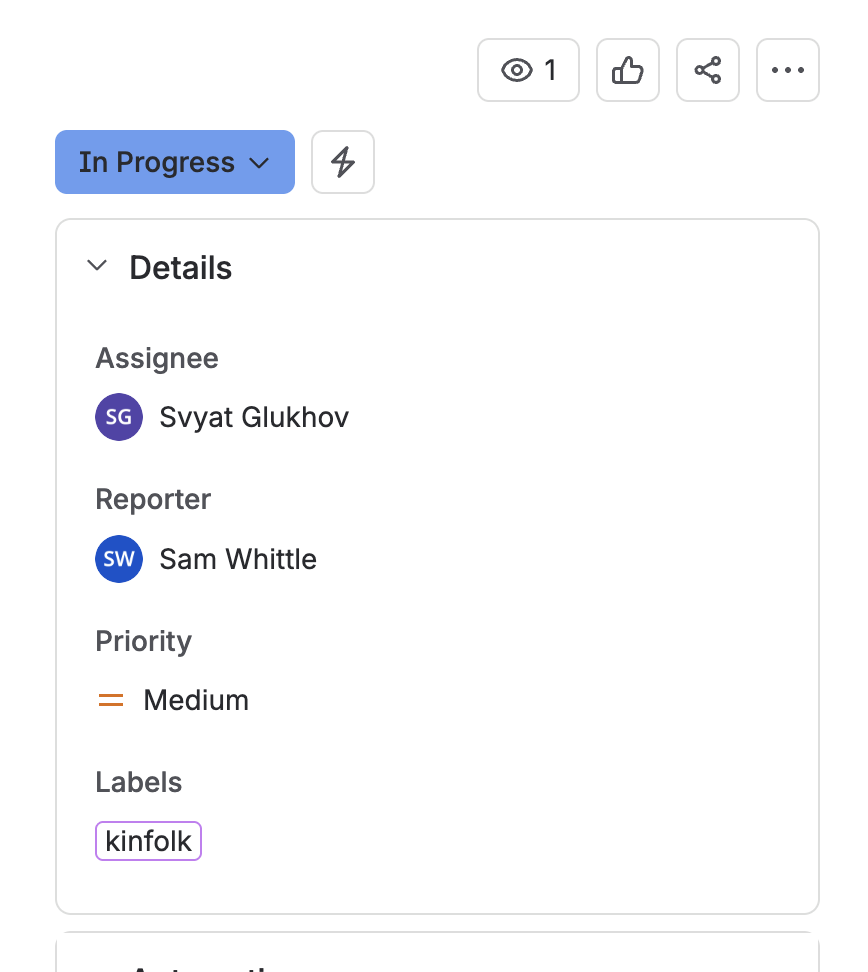
When the Jira issue is closed, that status doesn't sync back to Kinfolk, which means no CSAT message is triggered to the employee.
How are Delegated requests reflected in reporting
Reporting impact of "Delegated": Once a request is delegated to Jira, that conversation isn't captured in Kin's reporting the way a normal escalation is.
CSAT/sub-feedback bug: In the demo, the closed-request feedback (sub-feedback / CSAT) didn't appear as expected. Svyat was going to investigate — confirm it's resolved.
Setup UI is changing: The "Complete Setup" block is being removed, and Svyat is reworking the flow so you can test the connection first, then see/edit/delete all your routing rules in a list and add new ones. The UI in these recordings is pre-change, so screenshots will need to be redone once that ships.
Unless the category which is routed to Jira is marked as 'Flag as sensitive', these conversations will be included in the 'deflection rate'. By 'flagging as sensitive', the AI agent doesn't offer knowledge; it simply offers to escalate. For this reason, the conversations can't be deflected.
On the conversation dashboard, 'Delegated' status will show all requests which have been escalated to Jira. If no 'owning team' is set on the categories which are escalating to Jira, everyone will be able to see these conversations, so it's best practice to create a team of the Jira users in Kinfolk and assign to the category, even if they won't be active