AI Playground; Test your set-up and see the agent reasoning
Last updated: July 14, 2026
SuperAdmins + admins
This article covers how to use the AI Playground to test Kin responses without affecting metrics. It helps team members validate corrections to training centres, custom instructions, and knowledge base additions without needing to leave the back end. You can see in real time how a conversation will be categorised and who it will be escalated to. From here, admins will be able to make any adjustments needed to category rules, corrections, custom instructions and knowledge filtering rules to ensure the responses are as expected and will solve the requester's needs!
To note, if you are testing an agent with a Slack inline form (interactive elements), the form will still be sent via Slack (as this can't be completed in the Playground itself).
Key Steps
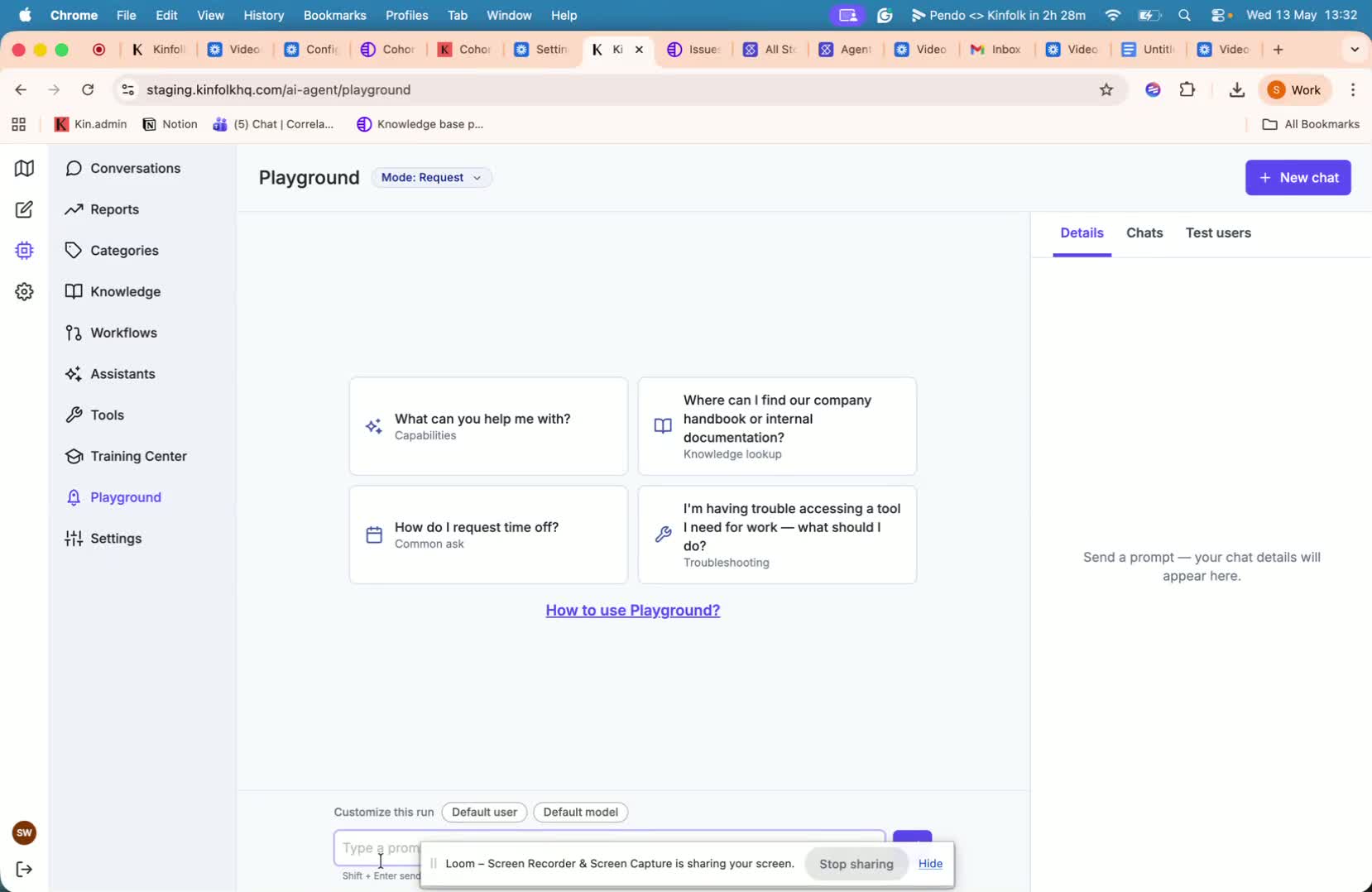
1. Access the AI Playground under "AI agent"
2. Choose the user context for the test
Decide whether to test as a pseudo user or as a default user (you).
If you wish to create a pseudo user (simulate a specific employee profile different from you own) do so by choosing, 'Create Test user'
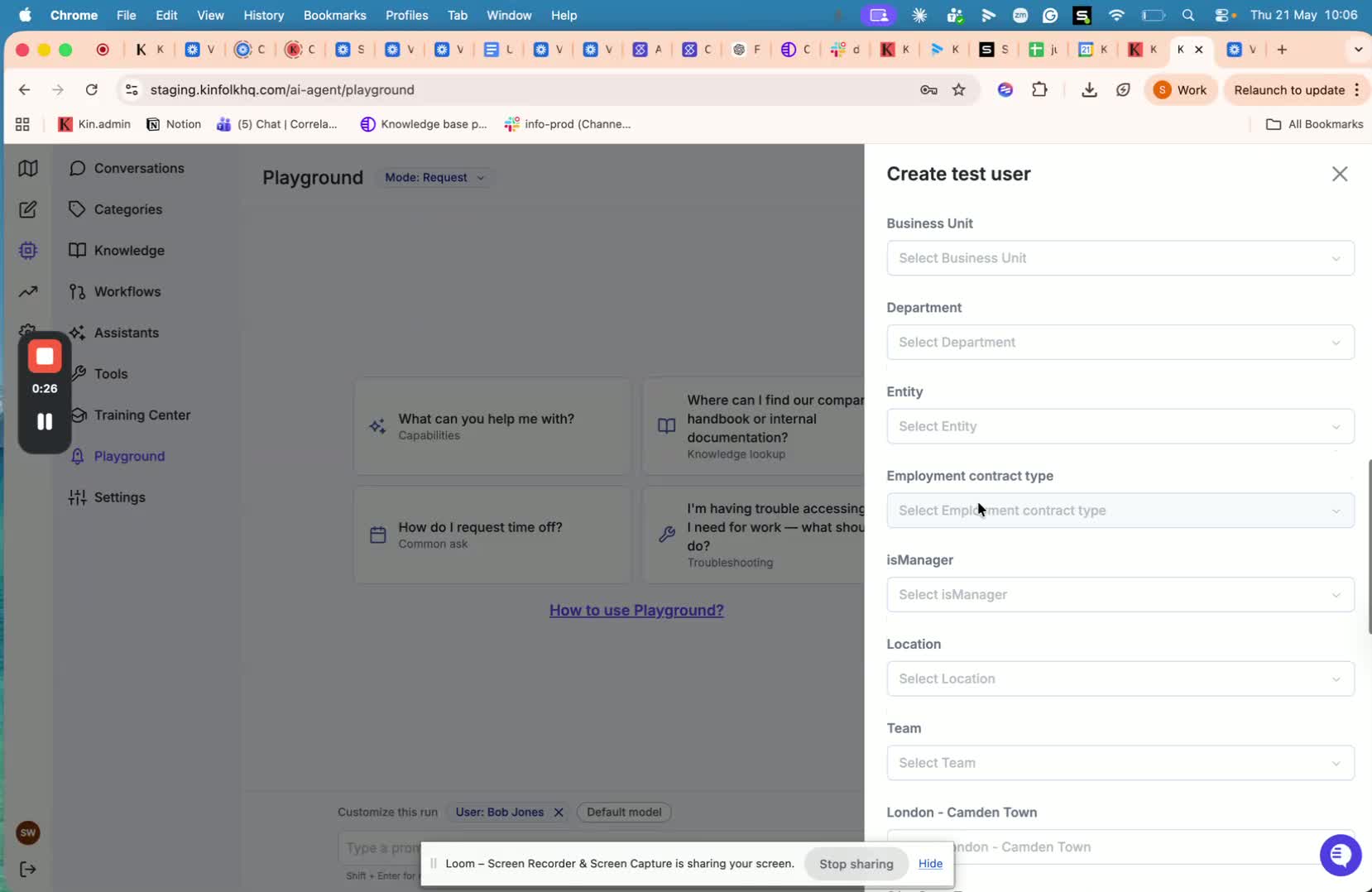
Enter any name you want for the user.
If you are trying to mimic a specific person, use a name that clearly identifies the test profile.
Choose which fields to include from the HRIS data being pulled through.
Use the dropdown to select the fields that best match the person or scenario you want to simulate.
Select only the fields needed for the test to keep the profile focused and relevant.
Save the User and Customize the Run
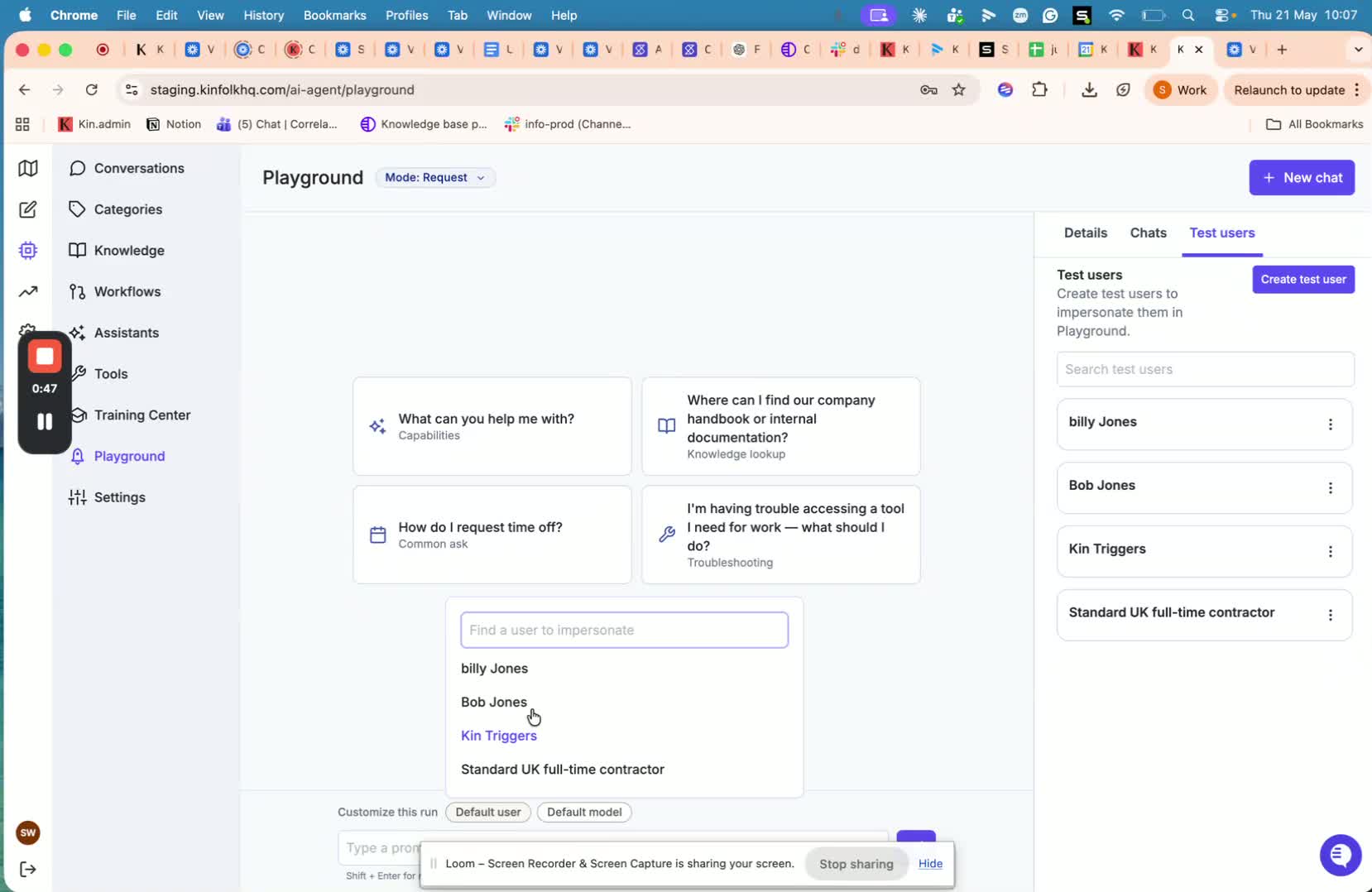
Follow steps below
3. Enter a test question in the Playground
Type a question into the Playground, such as:
How do I order a laptop?
Submit the query to see how Kin responds.
Use this step to confirm whether Kin can find the correct information or whether the knowledge base needs updates
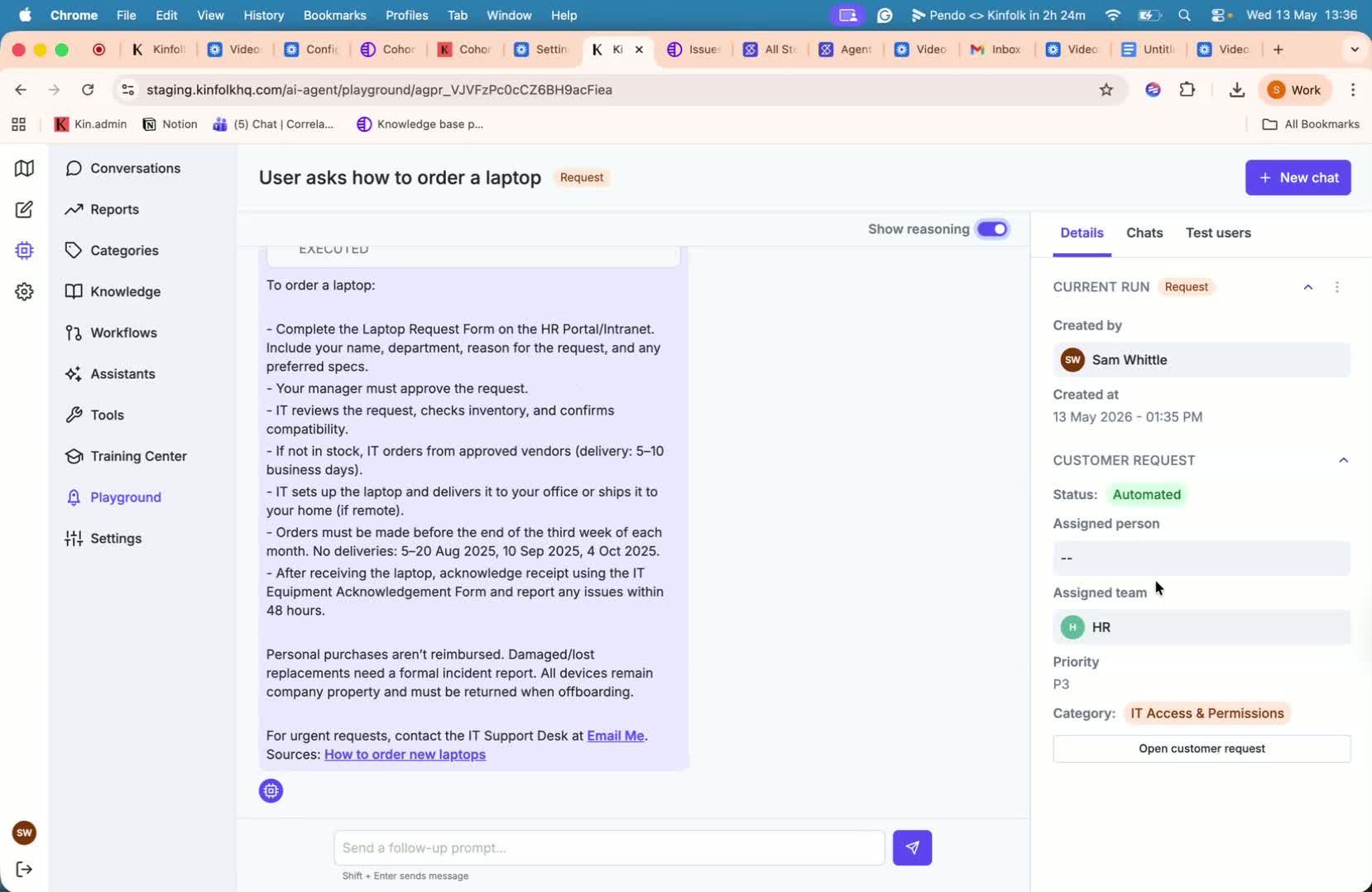
4. Review the conversation log and response details
Check the log panel on the right side of the Playground to understand how the request would be handled in a real workflow.
Review details such as:
Who created the request
When it was created
Priority
How it would escalate (category and team)
5. Turn on reasoning to inspect how Kin found the answer
Enable reasoning if you want to see how Kin arrived at its response.
Review the reasoning output to understand the search and decision process.
Use this feature when troubleshooting missing, incorrect, or unexpected answers.
6. Save and reuse test logs and users
Keep the request logs for future reference.
Save test users so you can reuse them for later validation.
Ensure you select the correct user context, since permissions and visible knowledge depend on the chosen profile.
If Kin cannot find an answer, verify whether the content is actually present in the knowledge base before assuming the system is broken.