Cohorts
Last updated: August 26, 2026
Admins + SuperAdmins
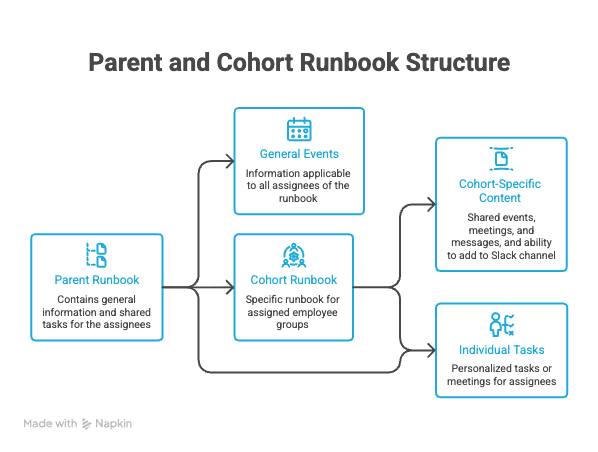
Cohorts let you group a set of assignees within a single runbook — most commonly a "class" of new hires who start around the same time — so they receive shared cohort-level communications and sit in a shared cohort Slack channel, rather than each being managed one-by-one. They can be added to the same meetings also.
It helps to picture a runbook as three levels: the parent runbook (your master template and source of truth), the cohorts beneath it, and the individual people assigned within each cohort. Anyone in a runbook either belongs to a cohort or sits directly under the parent, and a person can only be in one cohort at a time within the same parent runbook.
Cohorts are managed from the Cohorts tab on the runbook. Use Create new cohort to set one up and give it a cohort start date, which anchors when that group's shared comms are scheduled. If you've configured auto-assignment rules, matching new hires can be dropped into the right cohort automatically as they sync in from your HRIS — so in most cases you won't need to place people manually.
This is most helpful when it comes to onboarding, but can also be used within Program Runbooks (if you have a repetitive cycle, i.e., a benefits enrolment process, on a regular cadence you need to send the same comms but to different groups of people).
How Parent Runbooks and Cohort Runbooks work; a Visual
Creating a cohort
In the Parent runbook, head to the 'cohort' tab, then 'Create new cohort
Name it
Choose assignee rule
Choose which Slack channel messages will be sent to (these need to be pre-populated, and have Kin added as an app to the channel)
Choose start date of the cohort
Select the delta of when people outside this start date should be added (if you have folks joining off cycle which need to be captured)
How people are assigned to a cohort
If a person matches the runbook filter, the system checks whether a matching cohort exists. A cohort match depends on two conditions:
The person meets the cohort filter(s) (for example, Location = UK).
A cohort message will be sent to a cohort if and only if every user who could be in that cohort would also match the message filter.
Few examples:Cohort is for "UK and Engineers" and message is for "UK" - message will be sent because it's intended for the UK, which especially includes engineers from the UK.
Cohort is for "UK and Engineers" and message is for "UK and Engineers" as well - message will be sent.
Cohort is for "UK or US" and message is for "UK" - message won't be sent.
The person’s start date falls within the cohort’s assignment window, which is defined by the cohort start date plus any optional days before or after to allow for off-cycle start dates.
If a matching cohort is found, the person is added to that cohort. If no matching cohort exists, the person is assigned to the runbook as an individual assignee.
How it works in Slack
Cohort channel means “use the Slack channel assigned to each cohort.” Keep this toggle on when you want each cohort message to go to that cohort’s own channel, for example
cohort-2026-08-01for one cohort andcohort-2026-08-08for the next.Toggle Cohort channel off only when you want every cohort to receive the message in the same static channel, such as
#general.Slack channel mentions such as
@herecan be included in cohort messages. The editor may show “no matches found” because mentions have a different meaning in the event panel, but Slack will handle the mention when the message is sent.
Assignees will be added to the Slack channel on the cohort start date. We try midnight + every hour between 9am and 5pm. (also one additional attempt at 9am next day as before in the org's timezone).
When configuring messages to send to a cohort Slack channel, you have the option to select who that message is sent on behalf of.
If this isn't configured, "Kin" will be the sender in the channel.
Use the available dropdown to select the sender identity if choosing to select an individual.
Once sent, the message should appear in Slack as the selected person.
A small app icon will appear next to the name to indicate it was sent through the app.
Scheduling meetings for Cohorts
If the meeting should apply to all cohorts, create it in the program runbook so each cohort inherits it.
If the meeting needs to be specific to one cohort, schedule it at the cohort level instead.
1. How to 'Add new Meeting'
Navigate to Runbooks and then open the relevant parent runbook
Use the meeting setup area to create a new meeting
"Add new meeting"
Choose whether this is a 1:1 meeting, cohort meeting, or an existing meeting already in the calendar
3. Choose the organizer type (the person who will show as the organizer on the meeting invite)
Use "Role" i.e. HR Ops or HRBP only if the cohort shares the same HR Ops/HRBP contact.
Choose an independent user if one specific person should organize the meeting i.e. onboarding lead.
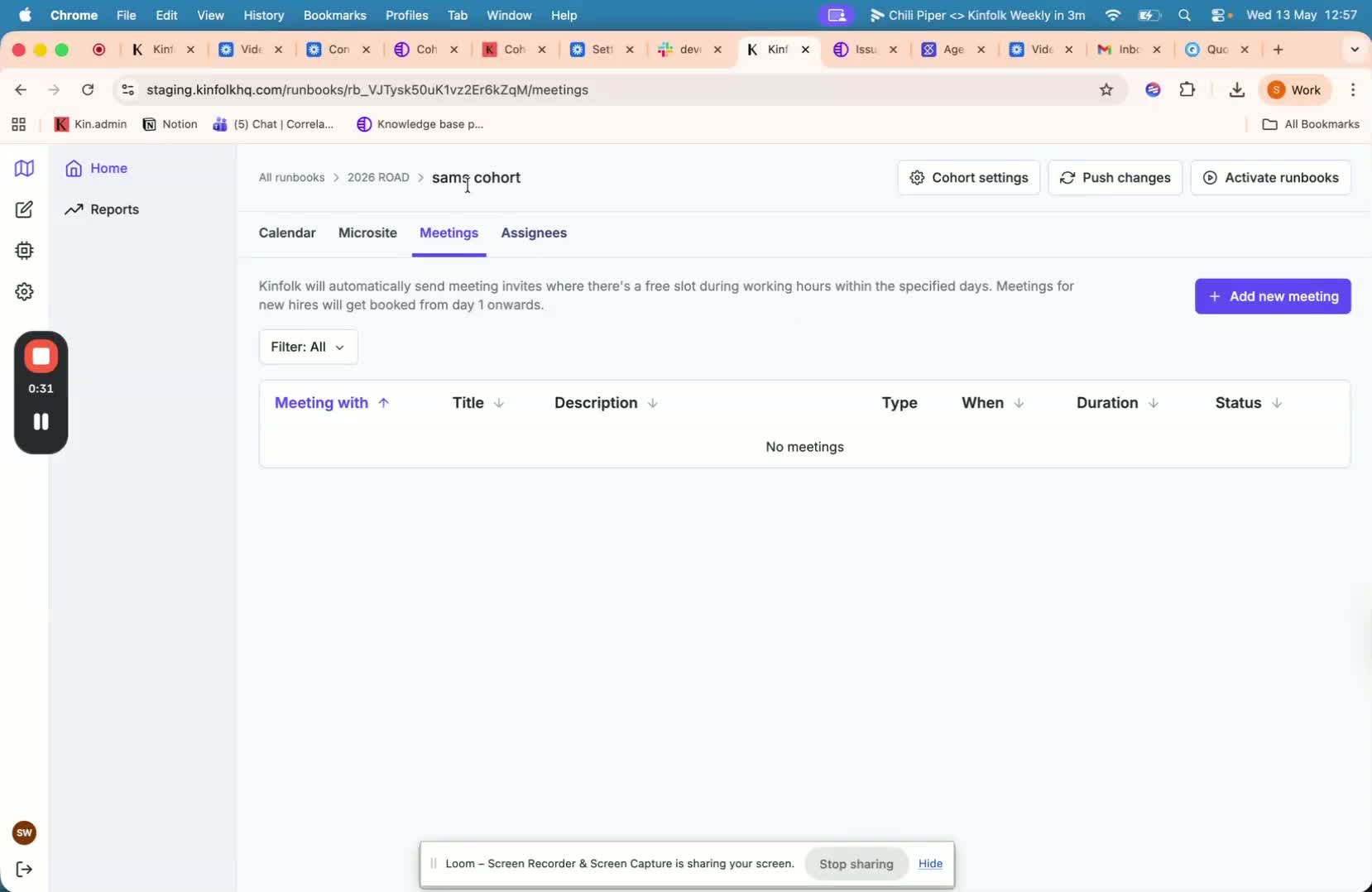
4. Set the calendar search window and meeting duration
Choose the day range the system should search for an open calendar slot.
Set the duration of the calendar invite
5. Save the meeting
A few callouts
Do not use a shared cohort meeting with one manager if cohort members report to different managers.
Make sure the organizer type matches the actual person or role responsible for the meeting.
Meetings created in the parent runbook will be inherited by all cohorts, so only use that option when the meeting should be universal.
Adding cohorts to pre-existing meetings
Navigate to Runbooks and then navigate to 'Meetings'
Use the meeting setup area to create a new meeting for the cohort.
"Add new meeting"
While searching the existing meeting calendar, user should have access to that calendar
If the existing meeting is not a recurring event, it'll let you create it without selecting date range because these meetings are only future meetings, we filter out past meetings.
If the existing meeting is a recurring event, you'll need to choose a date range, the attendees will be included to the next earliest occurrence.
Managing Cohorts and moving assignees
Adding / Moving people to cohorts
Using HRIS data, if an assignee's start date changes, they will be moved cohort(s). Any future comms which are due to be sent will be adjusted based on the cohort start date, but any pre-sent comms won't be sent again.
To manually add a person to a cohort, go to the runbook's people/assignees list, open the actions menu (the "⋮" on that person's row), and choose Add to cohort. A side panel opens where you select the target cohort from the dropdown and confirm. Once added, the person is placed under that cohort runbook, added to the cohort's shared channel, and their scheduled communications follow that cohort going forward.
If someone was missing from the Parent runbook entirely, you can add them to the parent runbook then assign to cohort. To note on this, if their data doesn't match what's configured on the messages themselves, they won't populate to their child runbook.
To move a person between cohorts, use the same actions menu — for someone already in a cohort the option reads Change cohort instead of "Add to cohort." Select the new cohort in the side panel and confirm, and they'll be reassigned to the new cohort (including its channel and comms schedule) and removed from the old one. Because a person can only sit in one cohort per parent runbook, changing cohort is a move, not a copy.
A few callouts
The parent runbook is the source of truth — cohort and individual comms flow down from it, so structural changes are best made at the parent level. Give the person a moment to sync into the new cohort's channel after a move, and if you've moved someone whose scheduled messages have already passed, whether those "catch up" depends on the runbook's catch-up comms setting.
Admins cannot customise cohort messages at the individual assignee level — since a cohort message goes to a shared Slack channel for the whole group, any changes must be made at the cohort level, not on a per-person basis.