Linking an existing meeting to a runbook
Last updated: October 7, 2026
Link existing meeting adds new hires to a calendar event that already exists, such as a weekly team welcome or a recurring onboarding session. Kinfolk doesn't create, move, or reschedule the event. It simply adds each new hire to the attendee list.
Use it when the meeting already exists and you only want new joiners added. Use 1:1 or Cohort instead when you want Kinfolk to create and book the meeting itself.
How to link a meeting
Open the runbook and go to Meetings.
Click Add new meeting, then choose Link existing.
Calendar: pick the calendar that holds the event. You'll only see calendars you have read access to.
Meeting event: search by any part of the event title and select it from the results.
Select assignees: keep All assignees, or add conditions so only some new hires are added, for example, only people in one office.
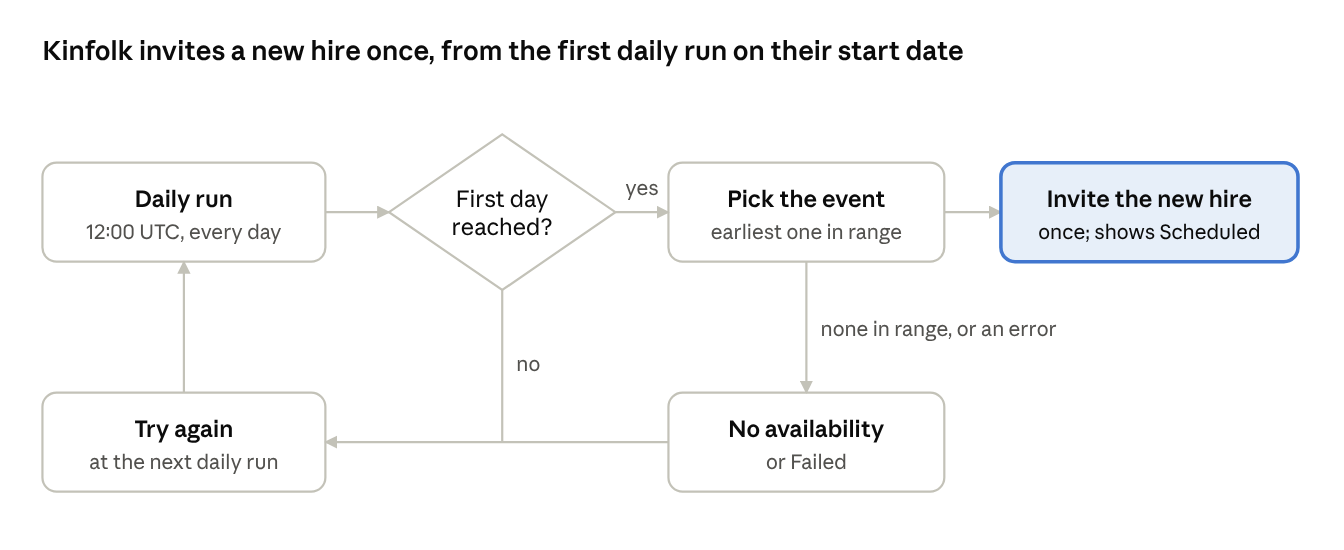
Scheduling date range (recurring events only): choose the window, counted in days from the runbook start date, in which the new hire should join. The default is Day 1 to Day 30. The new hire is always added to only one occurrence in this window.
Click Save.
After saving you can change the assignee filter and the date range. To point at a different event, delete the linked meeting and link to another one.
When the new hire is added
New hires are added at 12:00 UTC on their start date. They're never added before their start date, even if the runbook is live and the event takes place earlier.
Important: Make sure each new hire's work email is set on their profile before 12:00 UTC on their start date. Without it, Kinfolk has no address to add to the event.
Exceptions
Booking triggered manually: if someone clicks Book meetings on the runbook's Meetings page after 00:00 UTC on the start date, the new hire is added at that point rather than waiting until 12:00 UTC.
Assigned after their start date: if a new hire is added to the runbook after their start date has passed, they're usually added to the meeting straight away. Otherwise, they'll be added at the next daily run (12:00 UTC).
Once added, the meeting shows as Scheduled with the date and time of the occurrence, and the new hire receives a standard calendar invitation.