Steps to creating an Onboarding Runbook
Last updated: July 1, 2026
Admins + Superadmins
What this covers: Steps for creating a new Onboarding Runbook, assigning it, and adding at least one onboarding message. An onboarding Runbook automatically adds people (based on the filters) when they're hired to the business to receive comms and automate onboarding tasks/bring other people in, i.e. managers and buddies. As a reminder, throughout building your Onboarding runbook, so long as you don't "Activate" it, nothing will be sent, so you can build as you like! |
Step 1. Create your Runbook
"Create New Runbook"
Select 'Onboarding' as the 'Moment Type'
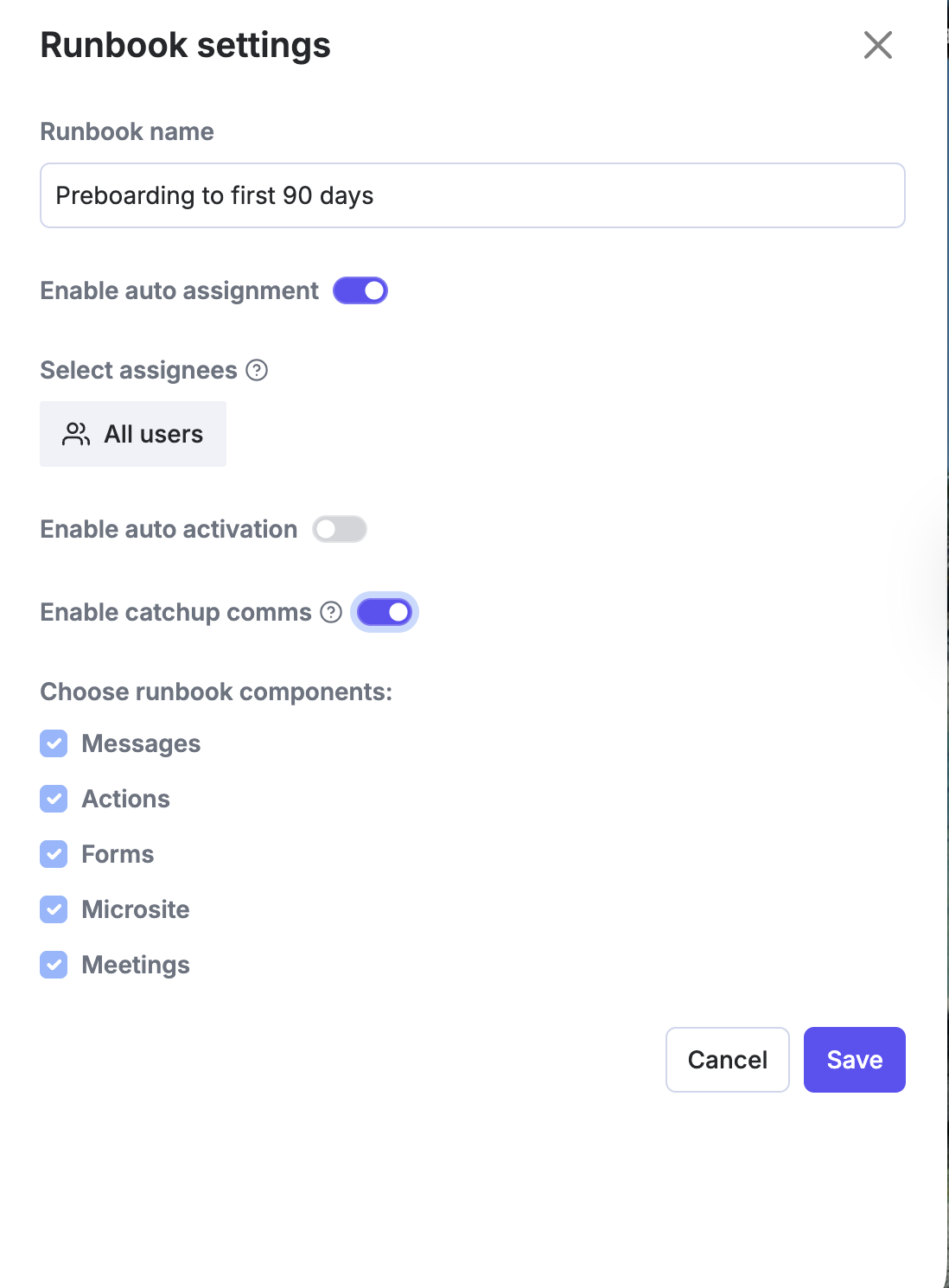
Either toggle on 'Auto-Assignment' (if you don't want to manually add people to the Runbook, which is the recommended approach) or leave it off
Toggle off 'Enable Auto-activation' for now. Auto activation means it will send the messages when someone is assigned to the runbook. For the first week, we suggest activating people individually until you're happy the filtering rules are correct.
Turn on 'Enable Catchup comms'
This means, if someone is hired in a shorter window than when your first message is scheduled to send, the AI agent will push the 'missed' comms as soon as possible (when brought over from the HRIS)
Select all components (good to have options!), unless you're only sending one intro message to Kin to new joiners, then leave as just 'Messages.'
It should look something like this:
✨ SAVE ✨
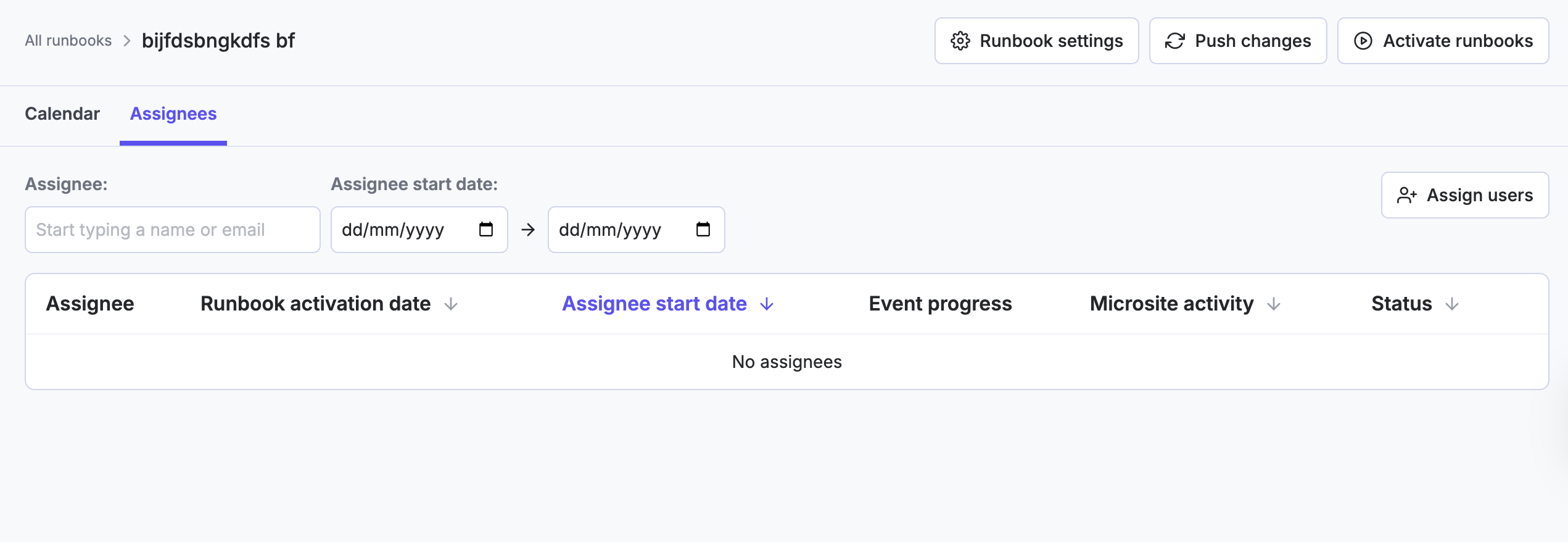
Step 2: Assign people to the Runbook
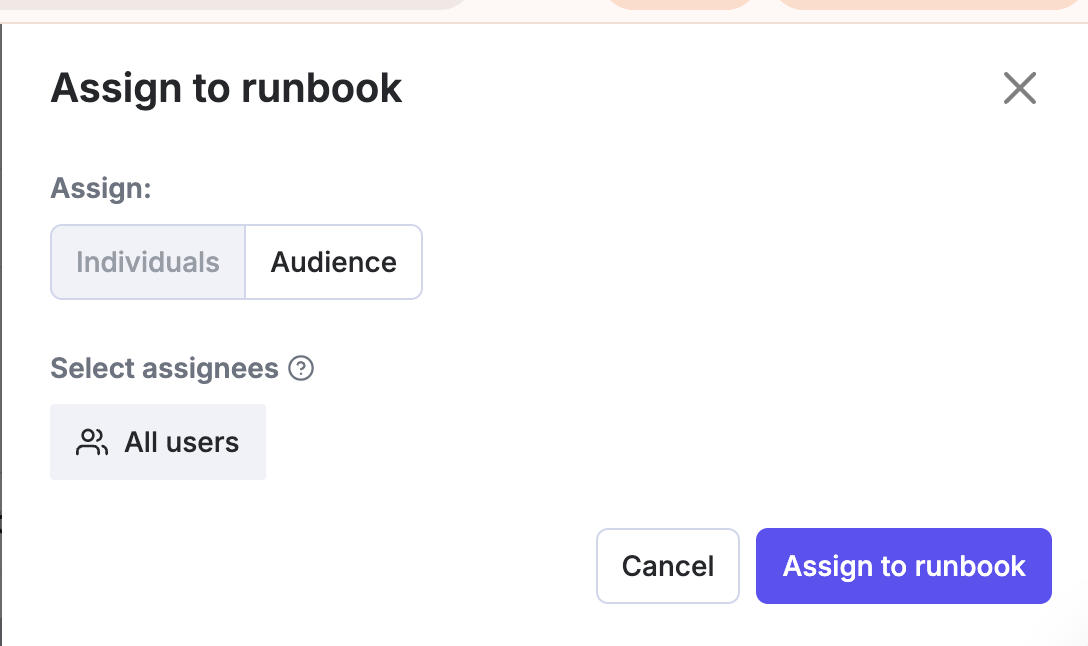
By 'assigning' people to the Runbook, you're essentially telling the AI Agent all the people who may be receiving messages as part of this Runbook. You can still filter down further when you create individual messages if needed.
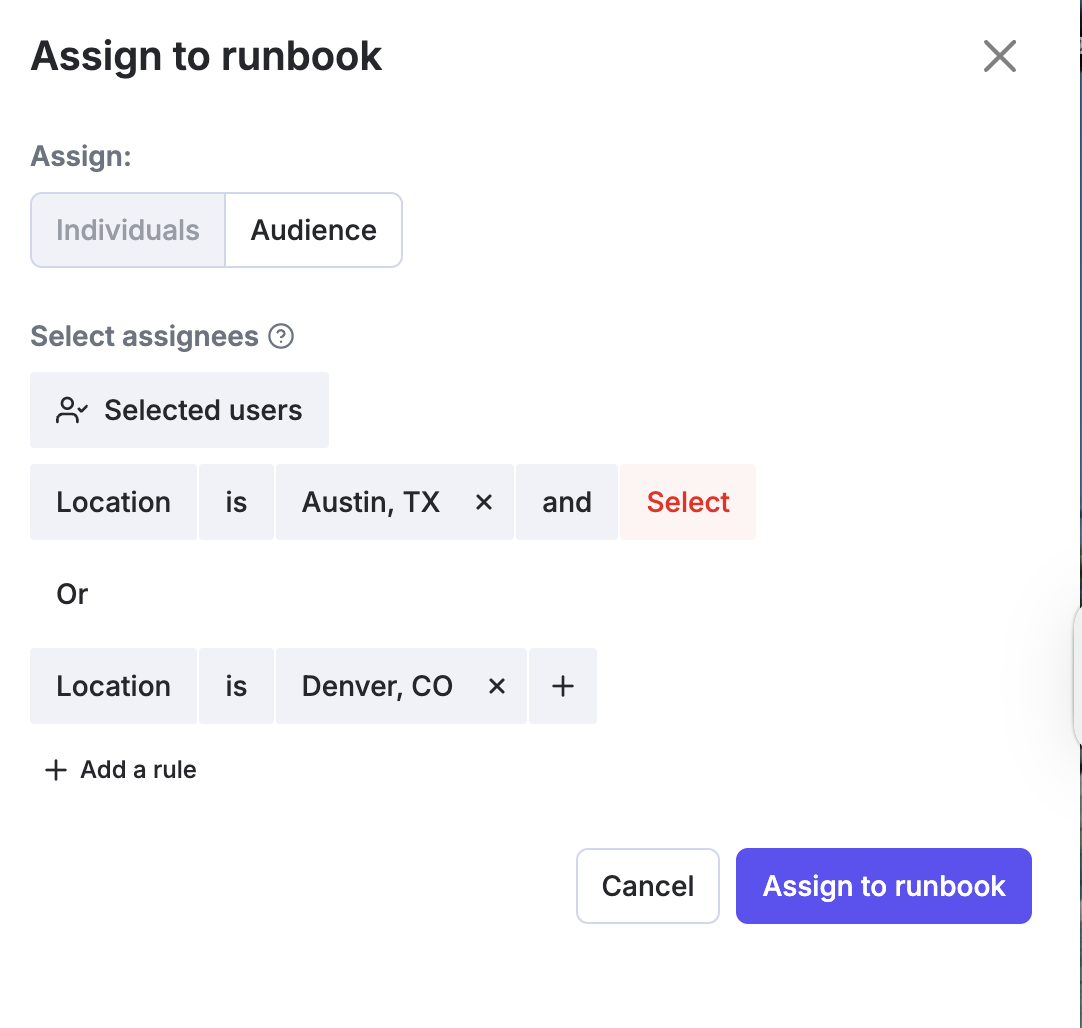
For example, if your runbook messages are to be sent to all employees in Texas and Denver, your filters would look like this.
This is based off the information received from the HRIS system.
✨ ASSIGN TO RUNBOOK✨
Step 3: Start creating your messages
Open the calendar view for the runbook
+ Create message
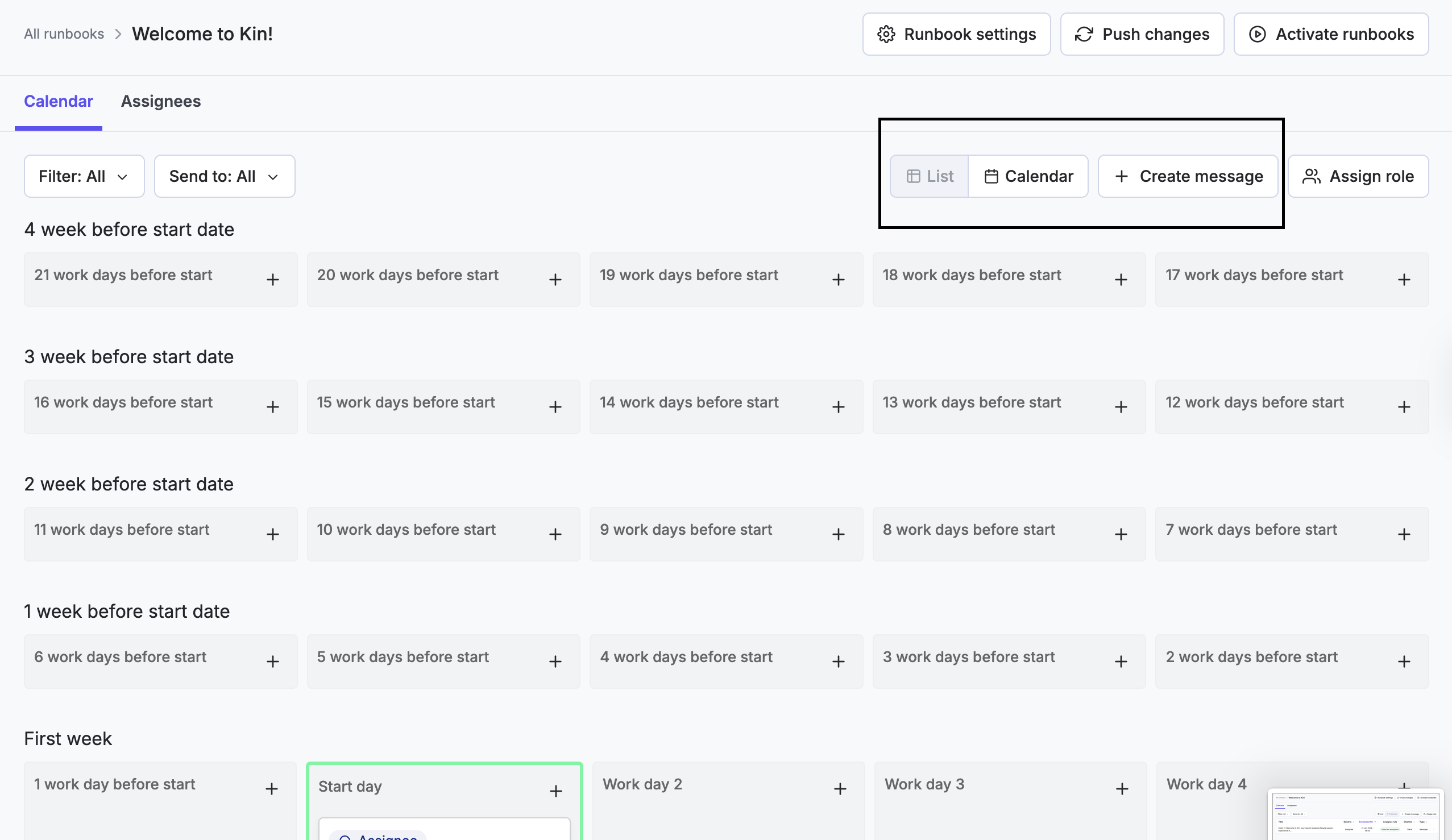
Choose the send method (Slack or email) and audience (who should receive it)
Select who should receive the message, and the time (based on GMT)
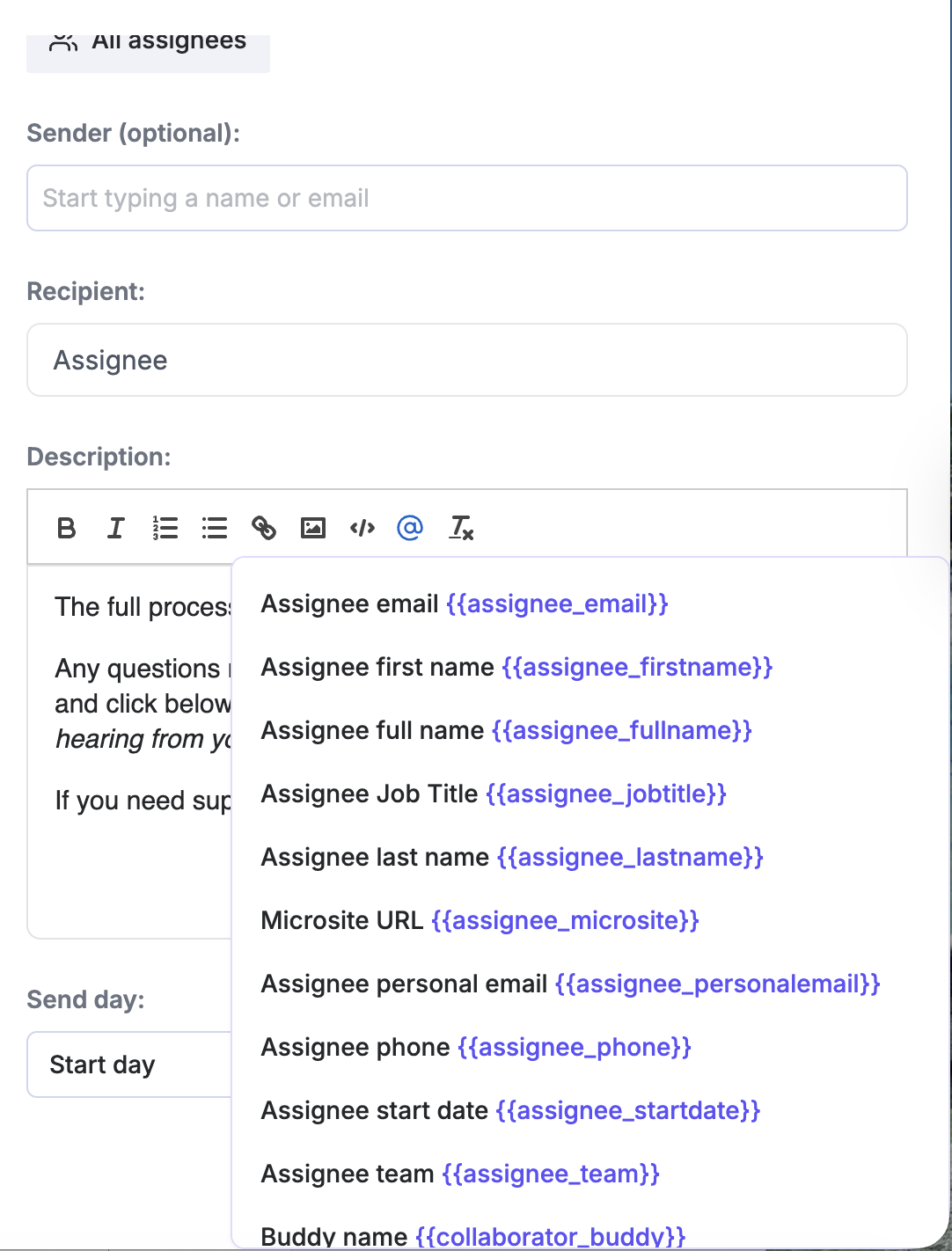
👀: Use the @ symbol for personalization token fields such as {{assignee_firstname}} in the message body. This will pull in information from the HRIS.
✨SAVE ✨
Step 4: Activate the runbook
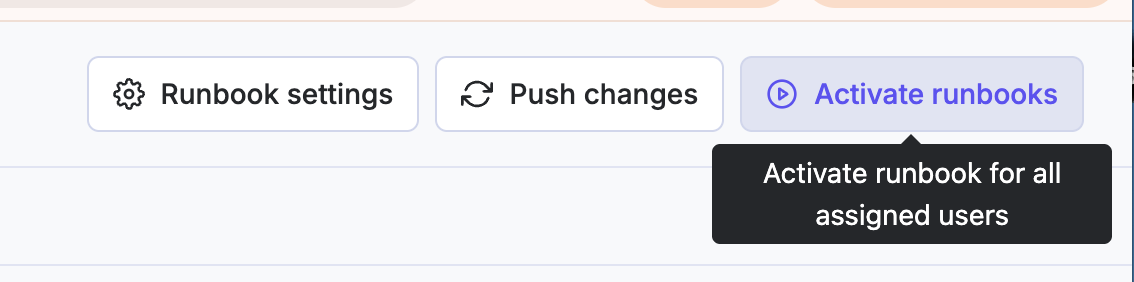
'Activate' your runbook. This will mean all assignees will be added to the runbook, and from here, there will be two possible options, depending on the approach you took in step 1.
If 'enable auto-activation' was toggled on, there's nothing you need to do for the messages to start sending to the assignees.
If 'enable auto-activation' was toggled off, then you will need to head to the 'assignee' tab and 'activate' for the messages to send.