How to create a Program Runbook
Last updated: August 24, 2026
Admins and SuperAdmins
Pre-read: Runbooks A program runbook manages complex, multi-step processes over time. Designed for key seasonal moments or strategic initiatives, such as open enrollment, performance cycles, or engagement programs, and are not anchored around an employee's start date. |
Step 1: Create the Runbook
Select 'Program' as the 'Moment Type'
Enter start date. This date anchors the runbook timeline (can set messages to send before and after this 'start date')
Give it a name, select the components (select all events if you're not sure what you would like to use at this stage, there's no harm in that!).
Toggle on 'Auto-Activation'
Decide whether you want to 'enable catch up comms' (this will be needed if someone is manually added to the program runbooks after it's started).
Step 2: Assign people to the Runbook
By 'assigning' people to the Runbook, you're telling the AI Agent the population of people who should be assigned to the Runbook. You can still filter down populations further when you create individual messages if needed, so this 'assignee' rule needs to be a wide net. Any event created that is created with the assignee rule, 'All Assignees' will be this population. You can choose to assign individuals, a saved filter (selected audience), or users from a csv list (if they don't fit into a filtered list i.e. they're individuals across multiple departments).
Step 3: Start creating your messages
Open the calendar view for the runbook
+ Create message
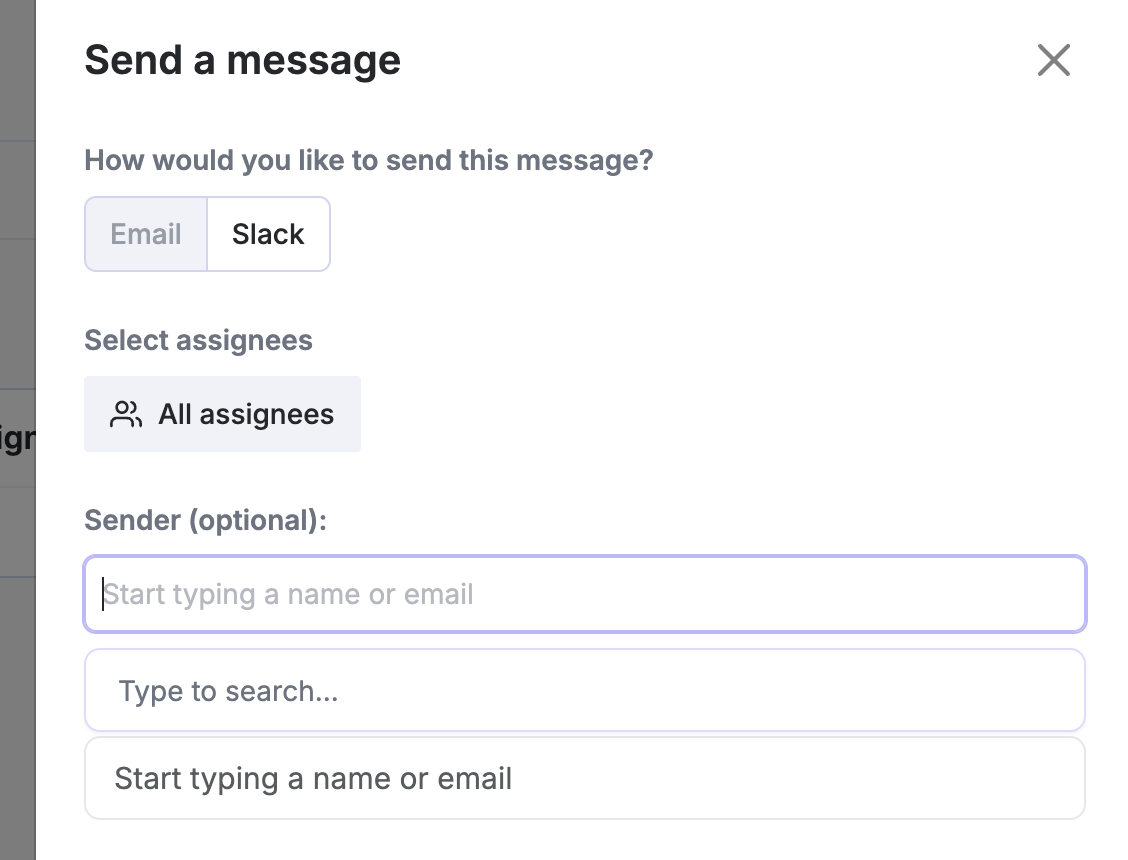
Choose the send method (Slack or email) and audience (who should receive it)
Select who should receive the message, and the time (the timezone shown is the default for your organisation's Kinfolk instance)
If you would like multiple messages to be sent based on different timezones, then you will need to create multiple of the same messages with different timezones and different assignee rules to match.
You have the option to configure who the sender of Slack messages are.
The message will come through the app as a DM, but will have the name of the sender, for added personalisation.
👀: Use '@' for personalisation tokens such as {{assignee_firstname}} in the message body. This will pull in information from the HRIS.
👀: If using emojis, use the actual emoji image rather than markdown i.e. :eye:
✨ Save ✨
Step 4: Activate the runbook
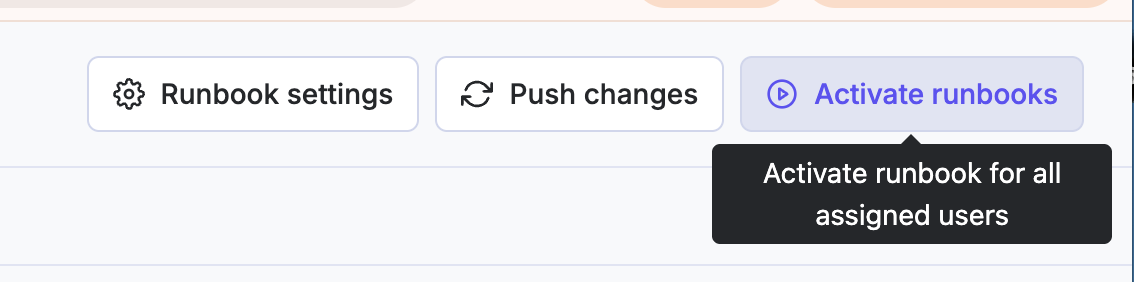
'Activate' your runbook. This will mean all assignees will be added to the runbook and the messages will be sent, anchored on the start date.