Microsoft Teams App Installation
Last updated: October 20, 2026
Welcome to the installation guide for the Kinfolk Teams App. This document is designed to help IT Administrators integrate our app into your Microsoft Teams environment in a secure way. The app allows users to schedule messages, send reminders and assign tasks to users directly from within Kinfolk.
Prerequisites to install the app
Microsoft admin: someone who can upload custom apps in the Teams Admin Center and grant tenant-wide admin consent in Microsoft Entra ID. This is usually a Global Administrator or Privileged Role Administrator.
Kinfolk admin: an active Kinfolk user with super admin permission who can open Settings → Integrations.
Standard installation process
Installation has two parts, and both are required:
In Microsoft Teams: upload the Kinfolk app and install it for your employees.
In Kinfolk: click Connect Microsoft Teams and approve Kinfolk’s permissions in Microsoft. This links your Microsoft tenant to your Kinfolk account.
Until both parts are done, Kinfolk can’t send messages to Teams, and Kin won’t reply to messages sent from Teams. The admin only needs to do this once for the whole organization.
Security, access, data handling
Kinfolk adheres to the highest security standards to protect your data and maintain privacy, as demonstrated by our SOC2 Type 2 compliance and ISO27001 certification as well as GDPR readiness.
Data flow diagram
This diagram shows the overall data communication flow between Teams App user and the Kinfolk platform.
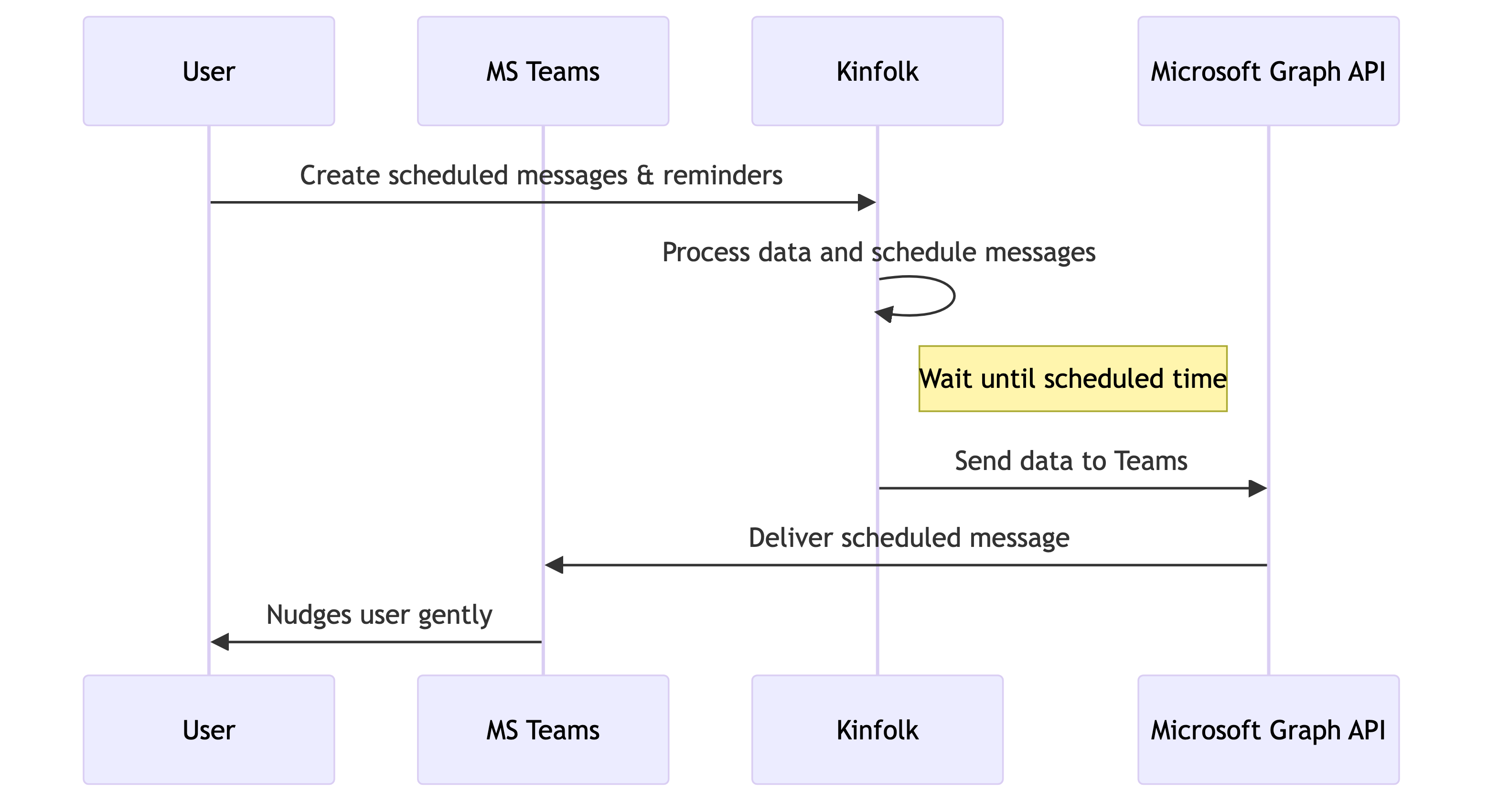
User Interaction: Admin user creates messages and tasks in Kinfolk and checks they are scheduled at the desired date.
Processing: Kinfolk platform processes the data, persists it in the database, schedules messages, and handles more user requests.
Data Transmission: Messages are delivered through the Microsoft Bot Framework. Kinfolk uses the Microsoft Graph API to look up teams, channels, user profiles and where the Kinfolk app is installed.
Delivery: Data is delivered to the user on Teams.
Compliance Certifications
Kinfolk complies with the following industry standards and regulations to ensure the highest level of security and data protection:
SOC 2 Type 2
ISO27001: Kinfolk is certified with ISO 27001
GDPR Compliance: Our app complies with GDPR, ensuring that personal data is handled with care and transparency. Our Privacy Policy details how we collect, use, and protect user data.
Security Measures
You can find information about our data protection and security policies in our Trust Center
Data Encryption: All data in transit and at rest is encrypted using industry-standard encryption protocols AES-256. Communication between the Teams app and Kinfolk platform and downstream dependencies are protected using TLS connections that are signed using the Signature Version 4 signing process.
Authentication: We securely authenticate and authorize API calls, and only rely on up to date and official Microsoft Graph API for delivering our service to the Teams App.
Regular Audits: Frequent security audits and vulnerability assessments to ensure compliance and address potential threats, according to ISO27001 standards.
Role-Based Access Control (RBAC) Access Control: Default permissions follow least privilege principle. Assign permissions based on user roles to restrict access to sensitive functionalities and data.
App Permissions
When you click Connect Microsoft Teams, Microsoft asks a tenant administrator to approve these application permissions:
Get a list of all teams (
Team.ReadBasic.All): to find the teams where the Kinfolk app is installed.Read the names and descriptions of all channels (
Channel.ReadBasic.All): to let you choose which channels Kin posts to.Allow the Teams app to manage itself for all teams (
TeamsAppInstallation.ReadWriteSelfForTeam.All): to check the Kinfolk app installation and version in each team.Allow the Teams app to manage itself for all users (
TeamsAppInstallation.ReadWriteSelfForUser.All): to check that a user has the app before sending them a message.Read all users’ basic profiles (
User.ReadBasic.All): to match Kinfolk users to their Teams accounts so messages reach the right person.Read and write calendars in all mailboxes (
Calendars.ReadWrite): used by the Outlook calendar integration.Read all user mailbox settings (
MailboxSettings.Read): used by the Outlook calendar integration, for example for time zones.
Kinfolk’s Teams and Outlook integrations share one Microsoft application, so all of these permissions appear on the same consent screen. Kinfolk doesn’t read Teams chat or channel messages that aren’t sent to the Kinfolk app.
Privacy and Security
Kinfolk is built with privacy and security at its core. Here’s how we protect your organizations data:
ISO27001 Compliant
GDPR Compliance: Adheres to General Data Protection Regulation (GDPR) requirements to protect user data.
Security Training: Regular training for our team to stay updated on the latest security practices and threats.
Security configuration is in line with Microsoft commercial certification policy number 1140.3.
For more details, refer to our Trust Center, or contact us at security@kinfolkhq.com
Installing the Teams app to your tenant
Adding the app
Get the provided application archive from your Kinfolk contact -
Kinfolk.zipfile (auto-generated by MS Teams for private distribution). Note: This package contains:Two image files for Teams UI
One manifest file (JSON) describing app permissions
Access Teams Admin Center
Navigate to Teams Admin: https://admin.teams.microsoft.com/policies/manage-apps
Go to Teams app and click “Manage Apps”
Upload the Application
Click "Actions" button
Select "Upload new App"

In the popup window, click "Upload" and select the Kinfolk application archive
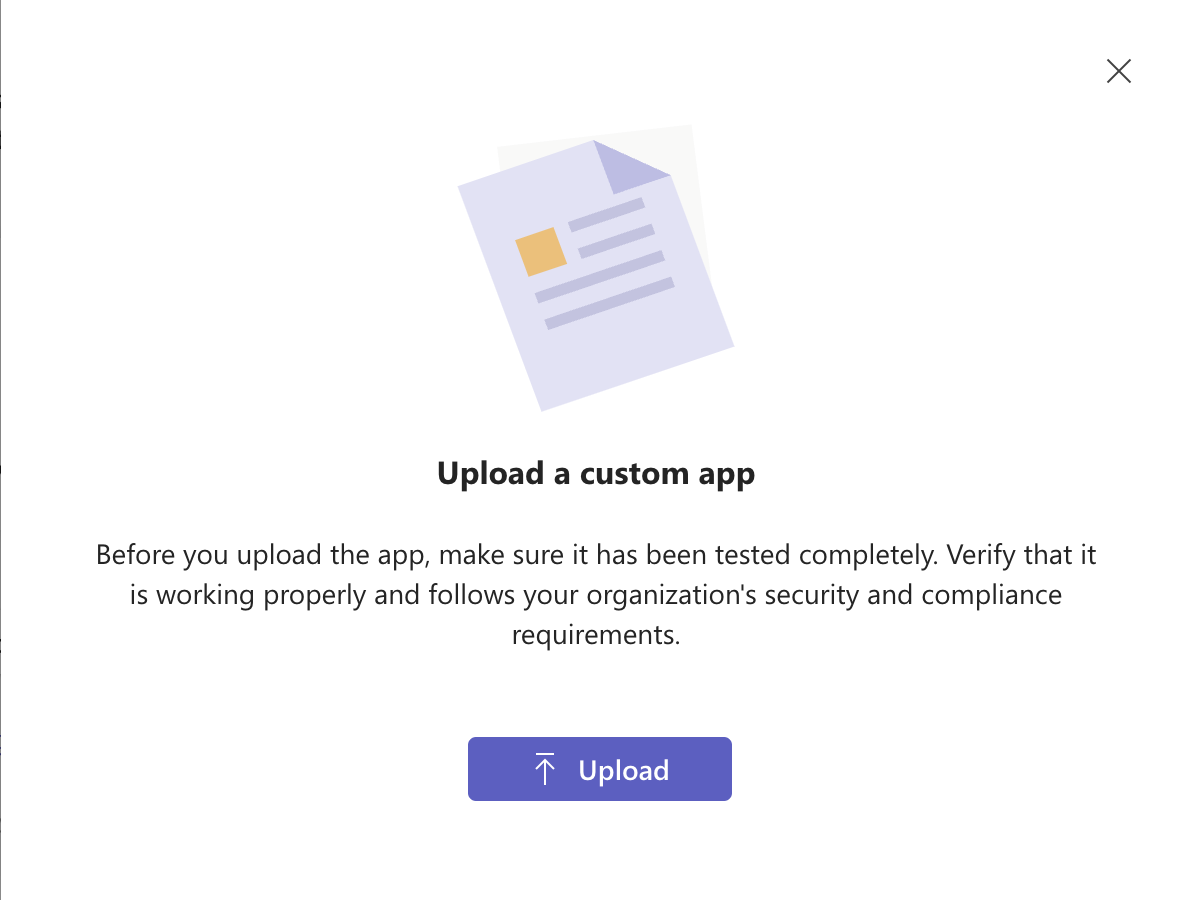
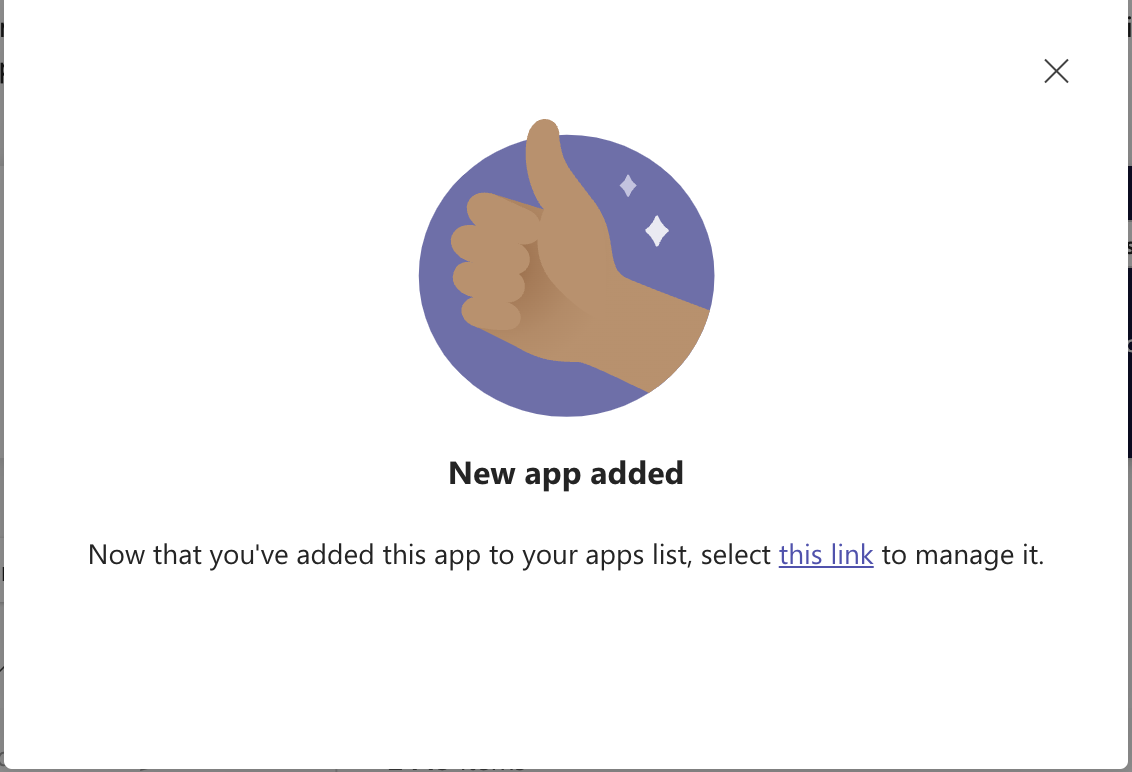
Once uploaded, the custom application will be added to your organization
You can view app details in the upload result window, or find it later by searching for "Kinfolk" in the apps list
Connect Microsoft Teams in Kinfolk
This step links your Microsoft tenant to your Kinfolk account and grants the permissions listed under App Permissions. Do it before rolling the app out to employees. Without it, Kin won’t answer messages in Teams, and messages scheduled in Kinfolk won’t be delivered.
Sign in to Kinfolk.
Go to Settings → Integrations and find Microsoft Teams.
Click Connect Microsoft Teams. You’ll be taken to Microsoft’s sign-in page.
Sign in as a Microsoft administrator who can grant tenant-wide admin consent.
Review the permissions and click Accept.
You’ll return to the Kinfolk Integrations page, where Microsoft Teams should show as connected.
If the consent is declined or the link expires, nothing changes. Click Connect Microsoft Teams again to retry.
Configure Organization-Wide Installation
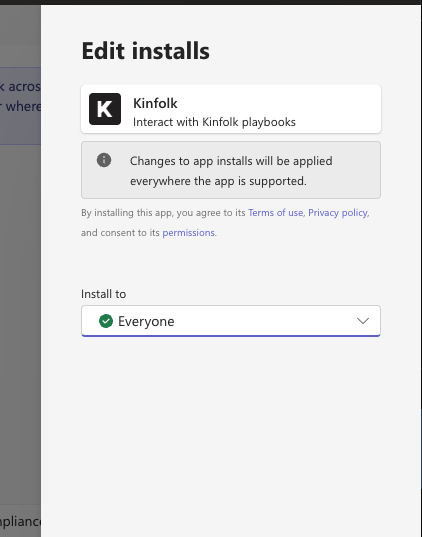
Next, install the app for everyone in your tenant from Manage apps:
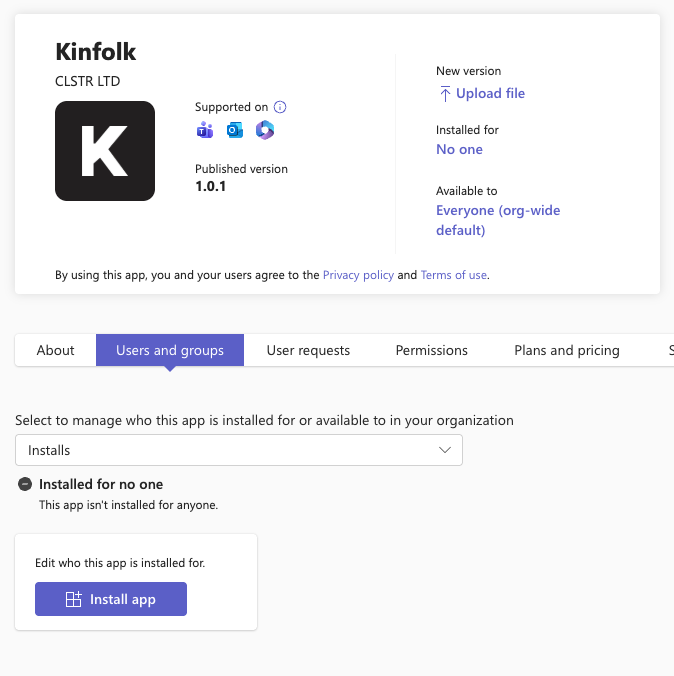
Go to Manage Apps, search for Kinfolk, in the Installed column click 'No one'
Click Install app, and select Everyone from the dropdown. Click Apply.
Important: For offline users
The Kinfolk app will only be installed when they come online. Users won't receive Kinfolk messages until they've appeared online at least once
Connect your account and enable Requests
After the Kinfolk app has been installed, each user must connect their Microsoft Teams account before using the Requests tab.
Note: These steps only work after a Kinfolk admin has completed Connect Microsoft Teams in Kinfolk. If /connect gets no reply, ask your admin to check that Microsoft Teams shows as connected under Settings → Integrations.
Sign out of Microsoft Teams, then sign back in.
Open the Kinfolk app and select the Requests tab.
If you see a warning that your account is not linked, open the Kinfolk chat and send /connect.
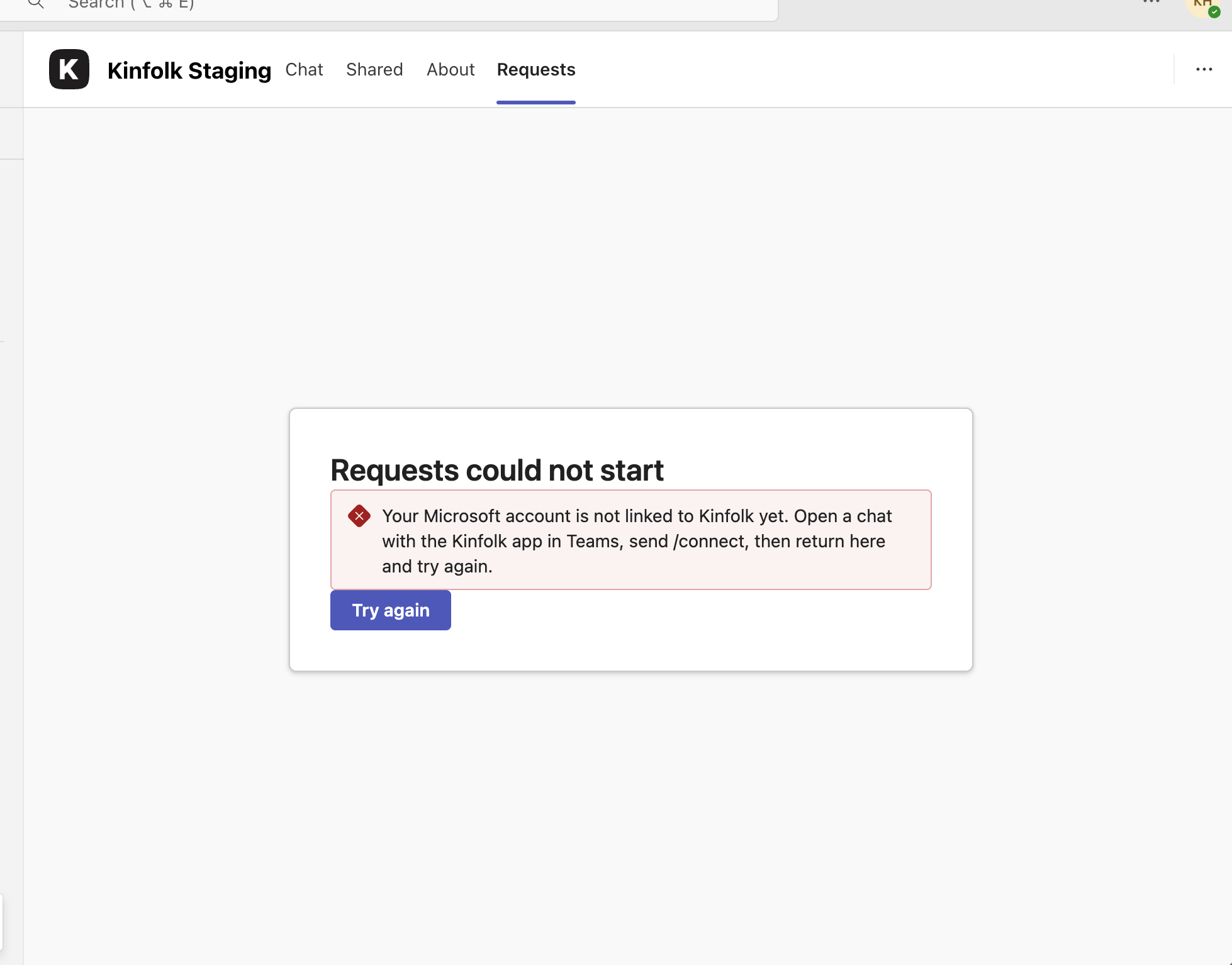
Wait for the Connected! confirmation. Return to the Requests tab; it should now load.
Troubleshooting
Kin doesn’t reply in Teams: check that Microsoft Teams shows as connected under Settings → Integrations in Kinfolk. Also check that the user’s Teams email address matches their email address in Kinfolk.
“Upgrade permissions” is showing: Kinfolk needs a new Microsoft permission. Teams keeps working. A Microsoft administrator should click Upgrade permissions and approve the consent screen again.
Some employees don’t get messages: the app installs for a user only after they’ve been online in Teams at least once.
Support
For any issues or queries during installation or usage, our support team is here to help. support@kinfolkhq.com