Email; How to integrate, block and respond
Last updated: September 16, 2026
Admins and Superadmin
Connect your HR email addresses so every email becomes a request, ready for AI categorization, prioritization for your team to action/respond. This ensures teams only need to manage one space for all inbound requests. There's no limit to how many emails to forward and configure as 'send as.'
How it works
Incoming emails are forwarded to Kinfolk and automatically create requests. The AI categorizes and prioritizes them, the same way it does with Slack requests.
Outgoing emails can be sent directly from Kinfolk using your own sender address (e.g.
people@company.com). Any replies will automatically create a request in Kinfolk.Spam and unwanted emails can be managed through your existing email filters. For additional control, use Kinfolk's blocklist to prevent specific addresses from creating requests.
A few callouts
This can only be done at email level, not domain level.
This is particularly useful if you need the emails to land in the inbox (perhaps for auditing purposes), but no action is needed, so don't need to be in Kinfolk.
How to integrate email
Before you begin, make sure you have:
Your email address — The address you want to receive emails at (e.g.
support@yourcompany.com)Your Kinfolk forwarding address — This looks like
abc123xyz@inbox.kinfolkhq.com. You can find this in your Email settings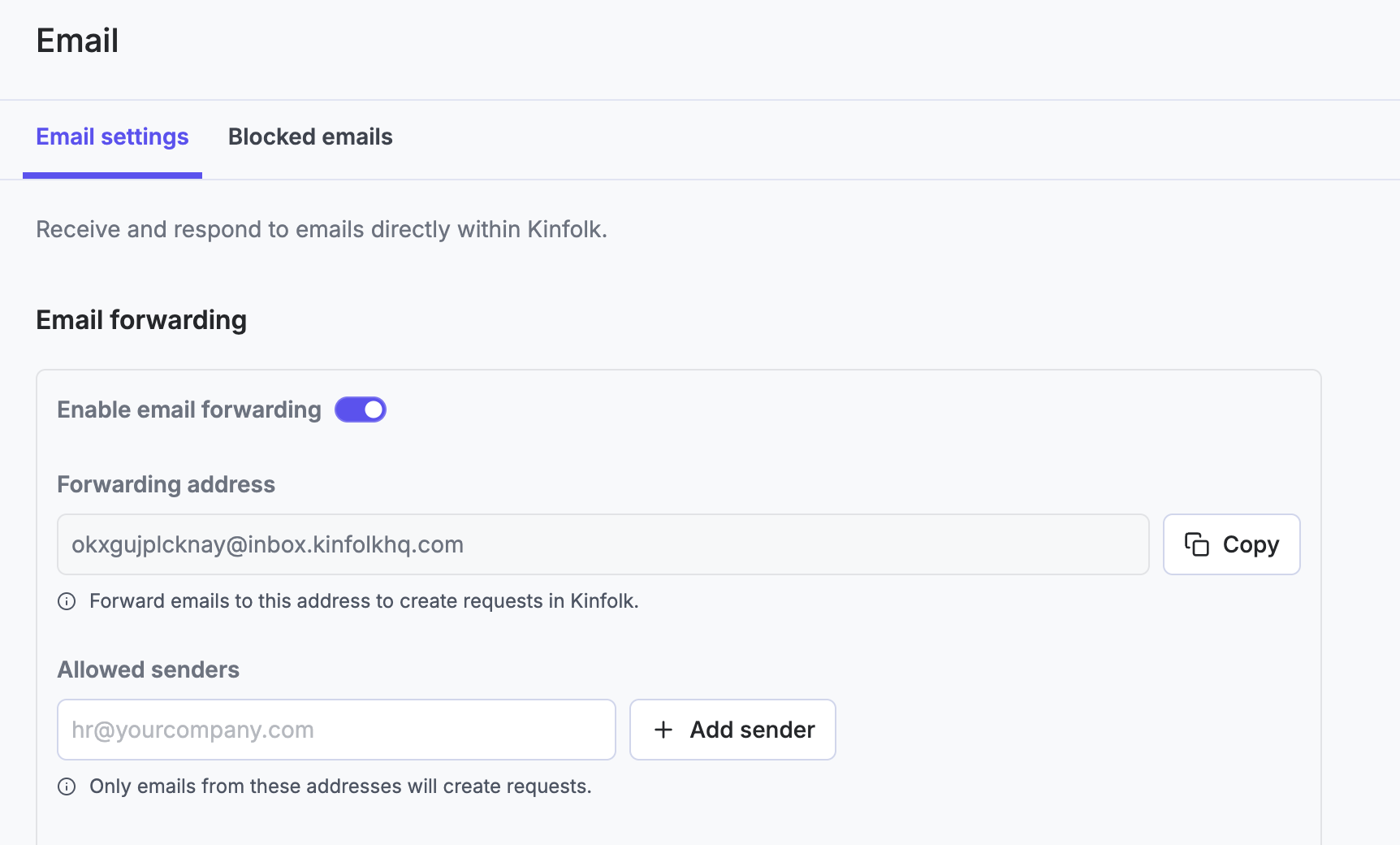
Admin access to your email provider — For example, Google Workspace Admin Console or Microsoft 365
Admin access to your DNS provider (optional) — Only required if you want to send emails from Kinfolk. Examples: Cloudflare, Namecheap, GoDaddy
Receiving emails in Kinfolk
Choose your email provider below for instructions.
If you use Google Workspace
Open Email forwarding settings in your Admin Console
Click Default routing, then Configure (or Add another rule)
Configure the forwarding rule:
Name:
Kinfolk forwarding(or any name you prefer)Address: Your support email (e.g.
support@yourcompany.com)Forward to: Your Kinfolk forwarding address (e.g.
abc123xyz@inbox.kinfolkhq.com)Messages affected: Select All incoming messages
Click Save
We recommend you keep a copy in your original inbox, check the box, and also route to the original destination before saving.
Microsoft 365
Go to the Exchange Admin Center
Navigate to Mail flow → Rules
Click Add a rule → Create a new rule
Configure the rule:
Name:
Kinfolk forwardingApply this rule if: The recipient is your support address
Do the following: Redirect the message to your Kinfolk forwarding address
Click Save
Other email providers
Forwarding can typically be set up through your email provider's admin panel or your domain registrar. If you need help, get in touch, we're happy to assist.
Tip: To block specific addresses from creating requests, add them to your blocklist in Email settings.
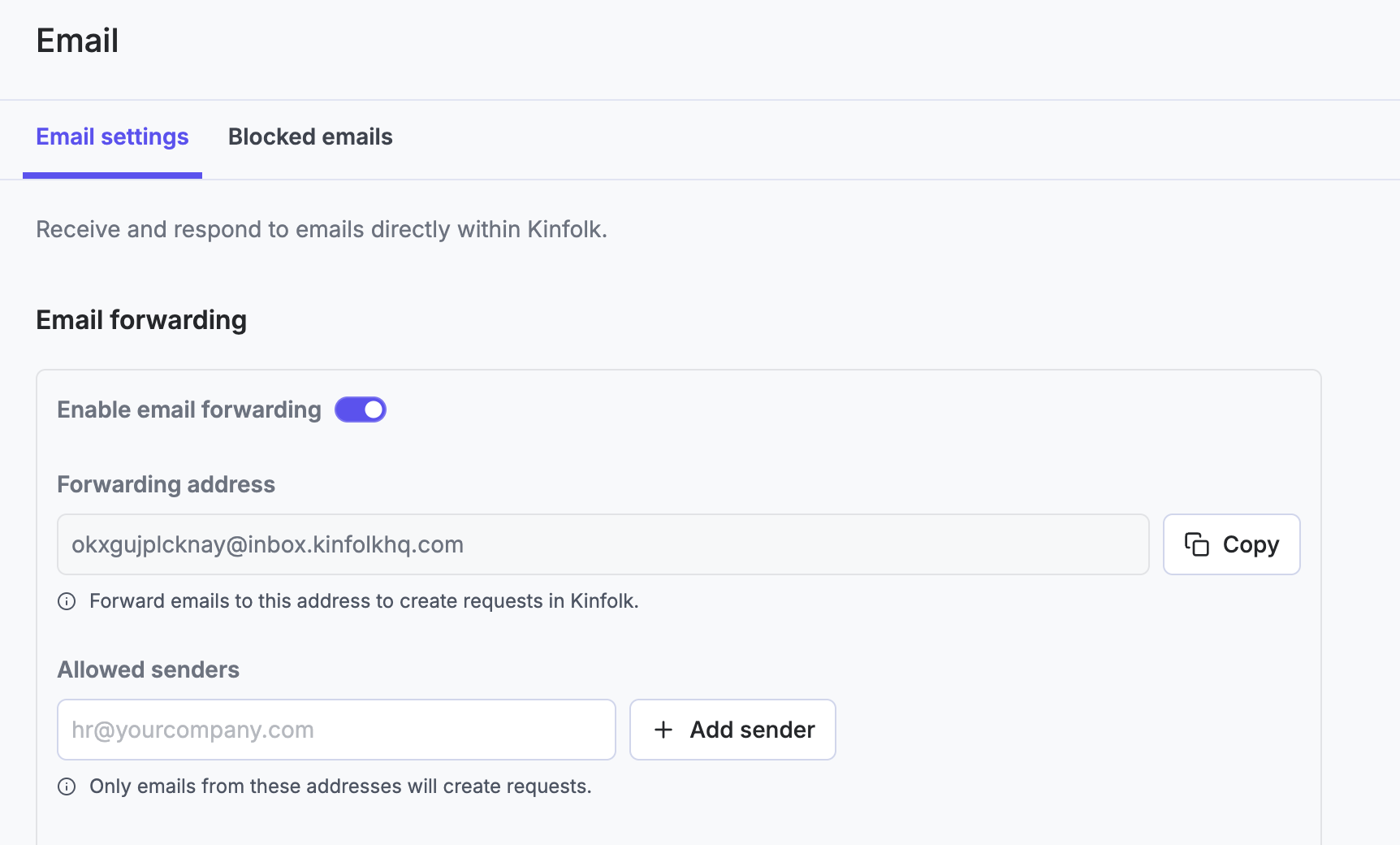
Once the above is done, you will need to 'validate' this/these email address in the "allowed senders" section.
The reason for this extra stage is in case (in the unlikely event) the unique email address was discovered/shared, unwanted emails may come through
There's no limit to how many email addresses can be forwarded to Kinfolk
How to block emails
Spam and unwanted emails can be managed through existing email filters.
However, if they do come through, it's recommended that they're "archived" in the platform, so they aren't conflating your stats (particularly as emails can't be deflected).
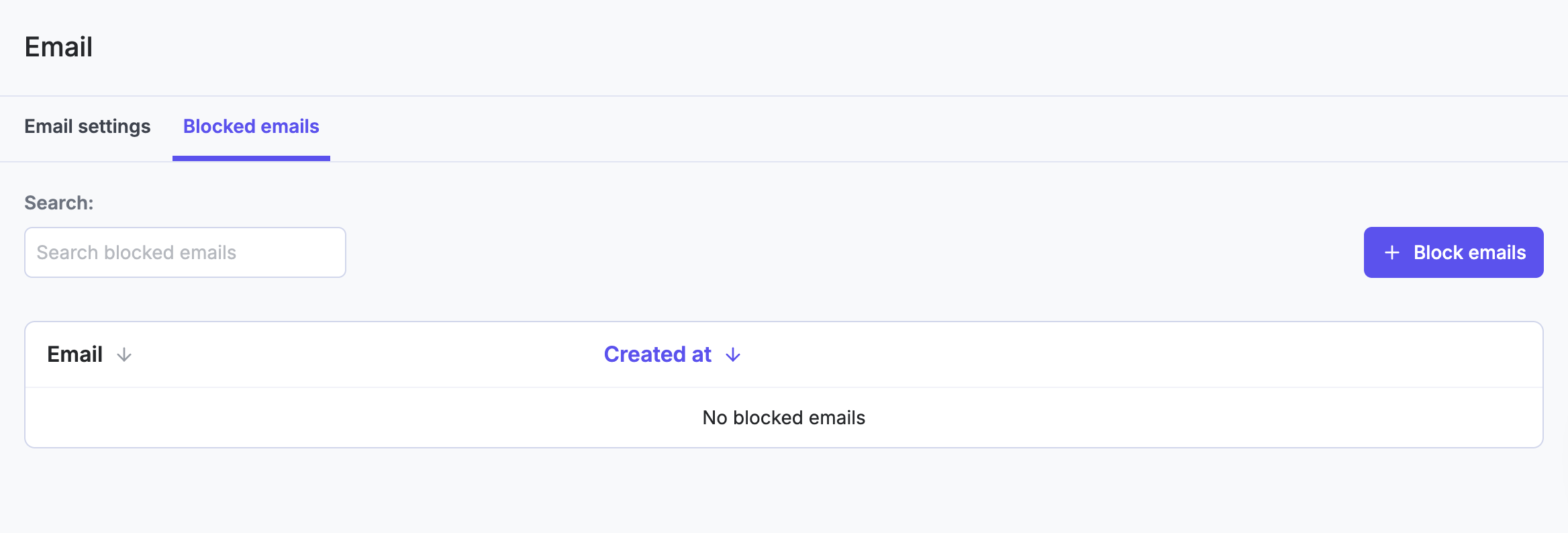
Kinfolk does have a blocklist feature to utilise if needed, which means emails from a specific address won't trigger requests. Simply list the email address (these will still land in your email inbox).
A few callouts
This can only be done at the email address level, not the domain level.
This is particularly helpful if there are emails which need to be received for audit purposes (invoices, receipts for payroll platforms etc), but don't need to be actioned and responded to in Kinfolk.
Sending emails
To send emails from Kinfolk using your company domain, you'll need to add a sender address and configure DNS records. This ensures your emails are authenticated and reach your employees' inboxes. Without the below configuration, the default sender address will be <your-org-name>@inbox.kinfolkhq.com.
Step 1: Add your sender address
Go to Email settings
Enter the email address you want to send from (e.g.
people@yourcompany.com)Click Add Address
Kinfolk will generate the required DNS records, displayed in a table below.
Step 2: Add DNS records
Copy each CNAME record into your DNS provider. The steps vary by provider, but generally:
Log in to your DNS provider (Cloudflare, Namecheap, GoDaddy, etc.)
Navigate to DNS settings for your domain
Add each CNAME record using the name and value shown in Kinfolk
Save your changes
Step 3: Verify your domain
Return to Email settings
Click Verify DNS
Once each record is verified, the status will update to Verified
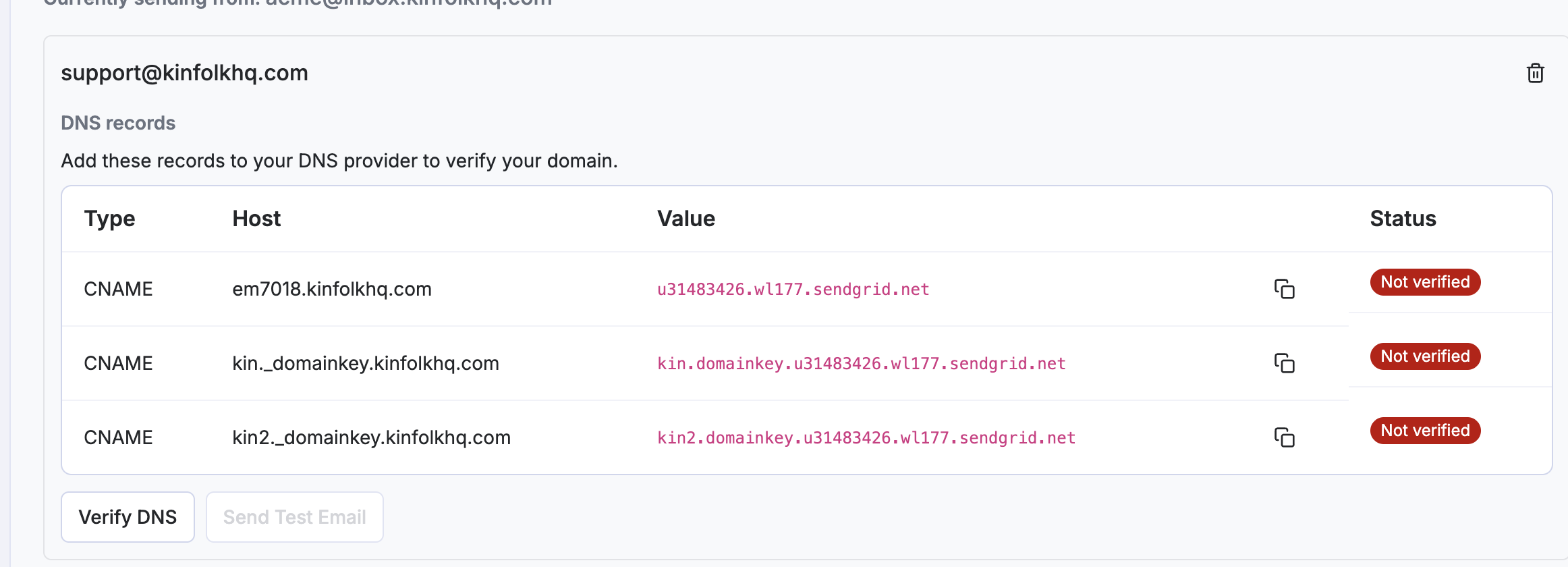
Note: DNS changes usually propagate within 5–30 minutes, but in rare cases may take up to 24 hours. You won't see anything here if you haven't done step 1 and 2.
Step 4: Send a test email
Once verified, send a test email from Kinfolk to confirm everything is working correctly.
Conversation Creation in Kinfolk
Emails are forwarded to Kinfolk when one of the configured forwarding addresses is in the "To" or "CC" fields of an email, regardless of how many recipients are in these fields.
If an email is sent with two forwarding emails in the "To" line, the first email address will take precedence if there are default rules in place. i.e. if an email was sent to "hr@kinfolkhq.com" and "payroll@kinfolkhq.com" in the "To" field, "hr@..." would be the default as it's first in line. If there are no default rules, the AI will categorise this once to the most relevant category (regardless of what email addresses are included).
Conversation closure & Reopen
If a conversation is 'Closed' by a Kinfolk User, and the submitter sends another email, the ticket will not move to “New” as it does with Slack.
A "Closure" notification via email (when Kinfolk user marks conversations as 'closed') is configurable per organisation, but is on by default. Toggle this on/off on the 'email' page.
Multi-Sender Conversations
Multiple people/addresses can participate in the same email thread without creating separate tickets in Kinfolk; it will be contained to the same 'conversation'.
If someone is added to the conversation via email or the Kinfolk platform (using the cc feature), it remains contained in that conversation, too.
Use the "reply to specific email" feature when working with complex multi-message threads
If Kinfolk user CCs another address when responding to an email, the conversation thread will be visible to the 'new' address
If multiple people are involved in a conversation, as they have been brought in by CC mid-way in conversation, the Kinfolk user can choose who to respond to by using the small reply arrow. Any replies will still be threaded to the same conversation.
All email recipients (To, CC, BCC) are visible within the ticket conversation, so Kinfolk users can see who was copied into the initial email (bottom right hand corner of the message box)
When replying to an email which had multiple people in the “To” and “CC” fields, that response is only sent to the submitter of the email. It doesn’t reply to everyone
If typing just in the 'Reply' box, that will send a reply to the email sender only
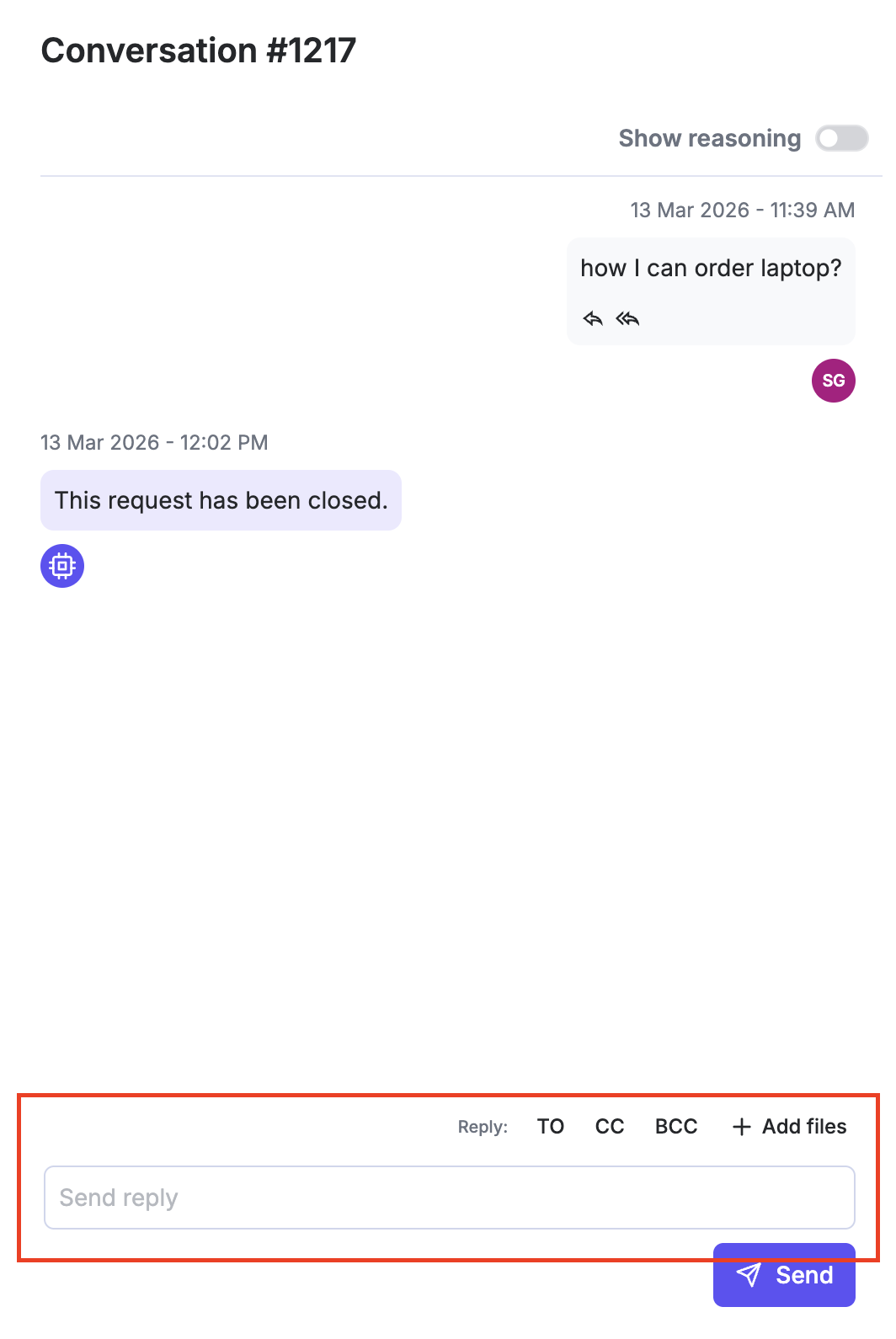
However, you can bring other people into the conversation using the following functionality
How threading ID works (keeping emails in the same Kin thread)
Every time Kin receives an email, it has to make a decision: add this message to an existing request, or open a new one. Getting that decision right is what "threading" means.
The important thing to know is that Kin does not decide based on the subject line alone. Two emails with the same subject will not be merged into one ticket just because the subjects match. Instead, Kin looks at hidden information every email carries — a conversation identifier your email system attaches behind the scenes — combined with who sent the message. That combination is what ties a reply back to the right conversation.
Why sender identity matters
This is the part that surprises people most. Imagine HR sends one company-wide email and 50 employees reply to it. Behind the scenes, all 50 replies can share the same conversation identifier, because they all descend from that one original email.
Kin deliberately keeps these as separate tickets, one per employee, by also matching on the sender. If it merged them, you'd get one giant ticket with 50 unrelated people in it. So when you see separate tickets for separate people replying to the same broadcast — that's working as intended, not a bug.
What to expect with email threading
Situation | What Kin does |
|---|---|
Two new, unrelated emails that happen to share the same subject | Separate tickets |
An employee replies within an ongoing email thread | Same ticket — the reply lands on the original request |
Many people reply to the same company-wide email | Separate tickets — one per person |
A reply that clearly references a specific existing request | Routes to that request, even if another open ticket has a similar subject |
Kin sends a reply out | Threads correctly in Outlook/Gmail, so your team sees one continuous conversation |
Out-of-office or any auto-replies | Will appear in the conversation thread and won't create separate tickets |
What is not a sign of something broken
Separate tickets for separate people on the same original email — expected (see above).
Same subject, different tickets — expected. Subject alone is no longer used to merge new emails.
Older tickets that were already merged before this behaviour improved don't get automatically split apart. The improvement stops new mix-ups; it doesn't retroactively untangle historical tickets. If you have an old merged ticket, that's legacy data, not a fresh bug.
Emails from non-Outlook systems (e.g. Gmail, or automated messages from vendor/recruiting systems) are matched using standard email identifiers and can behave slightly differently from your employees' Outlook mail.
What might be an issue and to let us know about
If you see any of these, it's worth raising with us so we can check:
Two genuinely different people's emails landing in one shared ticket (a "fan-in" mix-up on new mail).
A reply to an ongoing thread that starts a brand-new ticket instead of continuing the existing one.
A reply that clearly belongs to one request showing up attached to a different one.