Connect SharePoint as a knowledge base
Last updated: September 17, 2026
This guide explains how to connect SharePoint as a knowledge base source in Kinfolk.
Before you begin
You’ll need:
Access to your Kinfolk settings
Your SharePoint site URL
Your Microsoft tenant ID
If you’re not sure where to find your SharePoint URL or Microsoft tenant ID, follow StackOne’s guide here: SharePoint connection guide.
Connect SharePoint
In Kinfolk, open Settings and find the Integrations page
Under Knowledge, click Connect Knowledge base
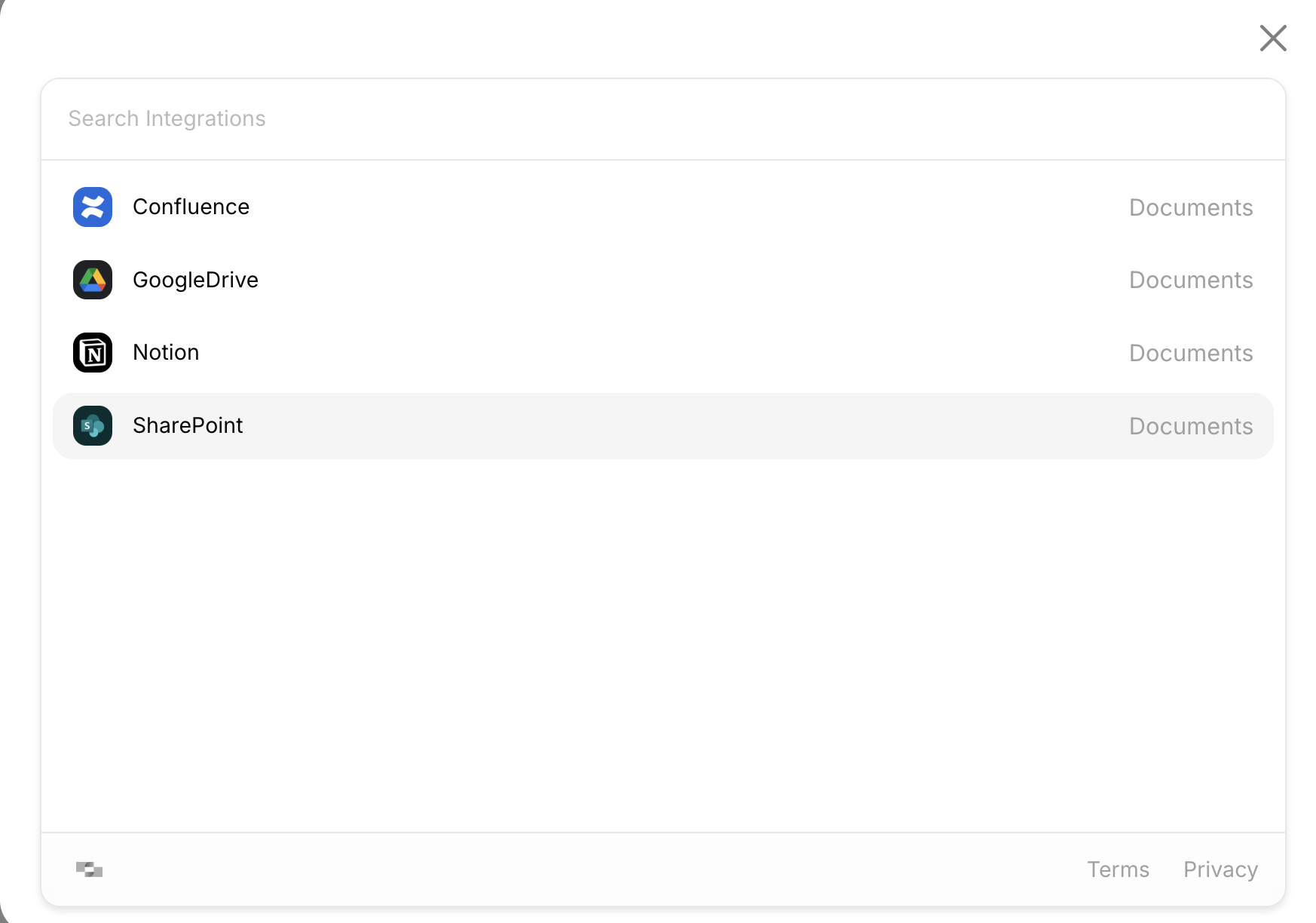
In the connector modal, select SharePoint
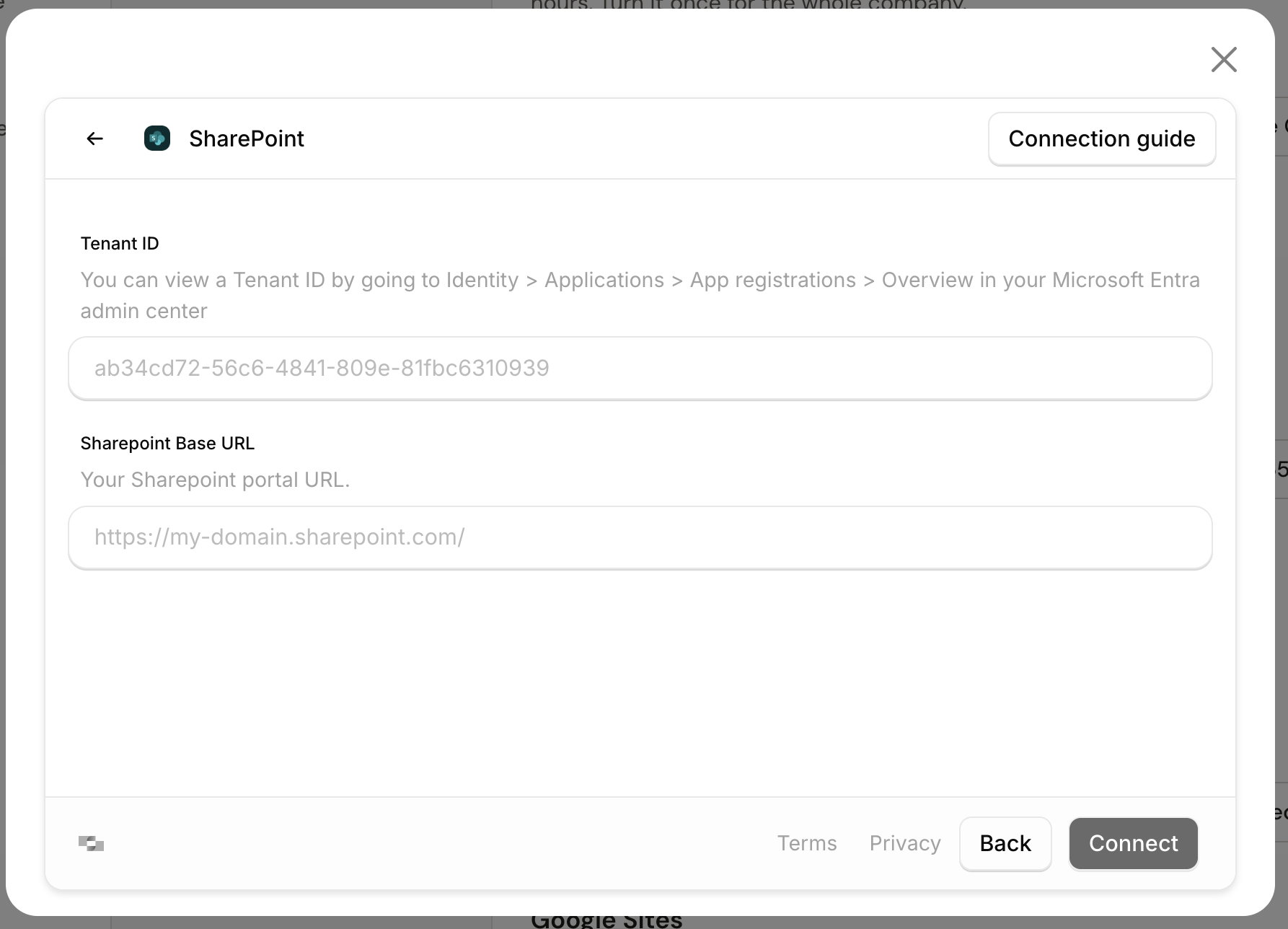
Enter your Microsoft tenant ID.
Enter your SharePoint Base URL.
Click Connect and follow the remaining prompts to authorize and complete the connection.
Finding your SharePoint URL and Microsoft tenant ID
Your SharePoint Base URL is your SharePoint portal URL. It typically looks similar to:
https://yourcompany.sharepoint.com/Your Microsoft tenant ID is the unique identifier for your Microsoft Entra ID tenant. You can find it in Microsoft Entra admin center under Identity > Applications > App registrations > Overview. If you don’t know it, use StackOne’s SharePoint connection guide for step-by-step instructions: https://hub.stackone.com/connection-guides/documents/sharepoint.
After connecting
Once SharePoint is connected, you will now be able to select and sync individual pages and folders to sync from Sharepoint.
Troubleshooting
Invalid SharePoint URL: Confirm that the URL points to the correct SharePoint portal and that it follows the expected format.
Invalid tenant ID: Double-check the tenant ID in Microsoft Entra ID or follow the StackOne guide to locate it.
Authorization failed: Make sure you have the required Microsoft permissions to authorize SharePoint access.