Microsites: Content landing pages in Runbooks
Last updated: October 19, 2026
Overview
A microsite is a single landing page for a runbook's content. Instead of sending people several separate messages and links, you send one microsite link, and each person sees the content that applies to them.
A microsite can have multiple pages, and pages can be grouped into chapters. Each page is made up of blocks, such as text and embedded content, tasks, notes, and questions (free text or multiple choice). Both pages and blocks can have access rules. These control who sees what, so one microsite can serve several audiences while the runbook stays simple to distribute.
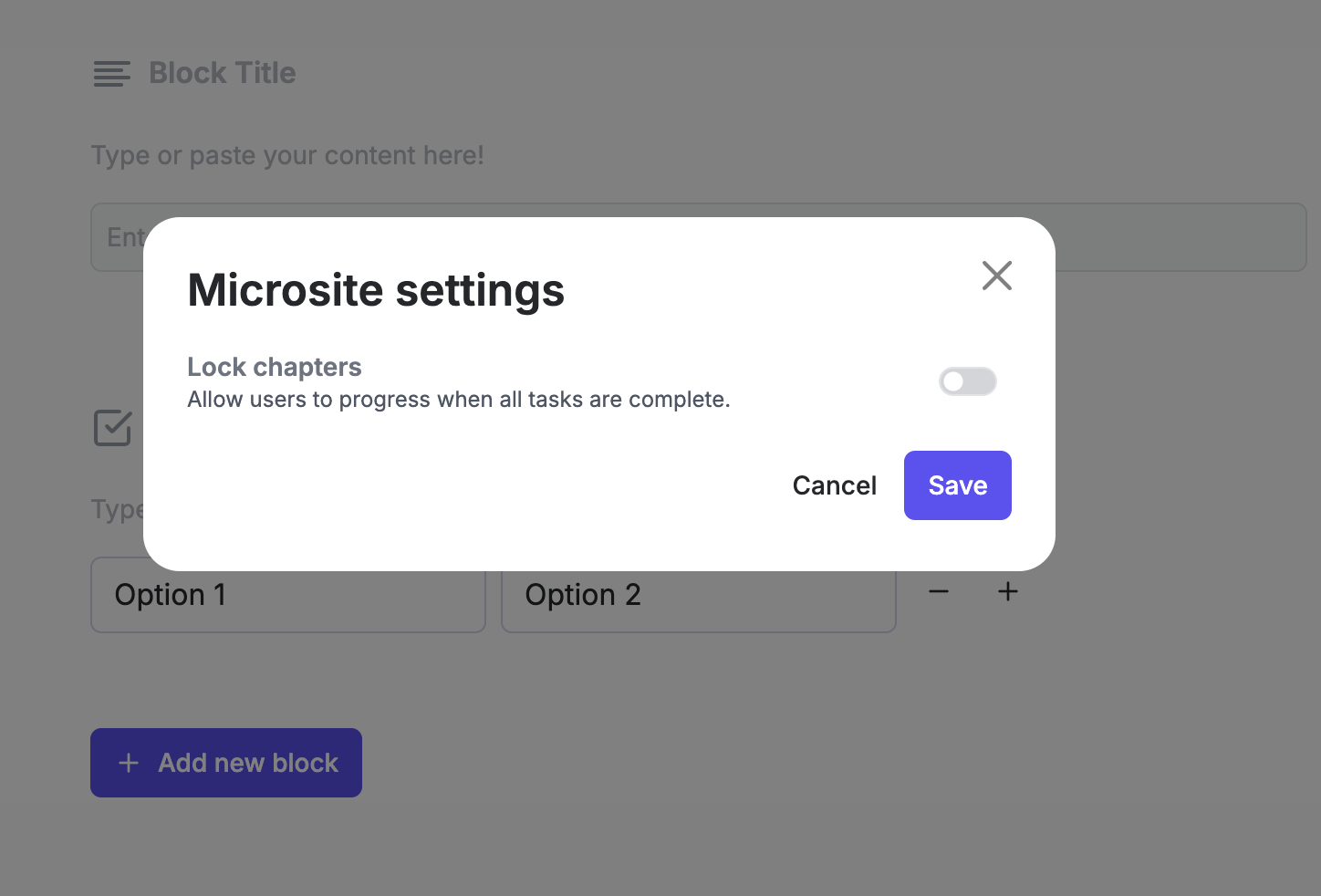
A few behaviors are worth knowing before you build one. Each person's microsite is their own. If it includes tasks, each person ticks them off individually, and their progress isn't shared with anyone else who has the same microsite. Recipients only see the pages and blocks whose access rules they match. Anything they don't match is hidden entirely rather than shown as locked. You can also lock a page until the runbook's start date, or the previous chapter is marked as done.
How to create a microsite
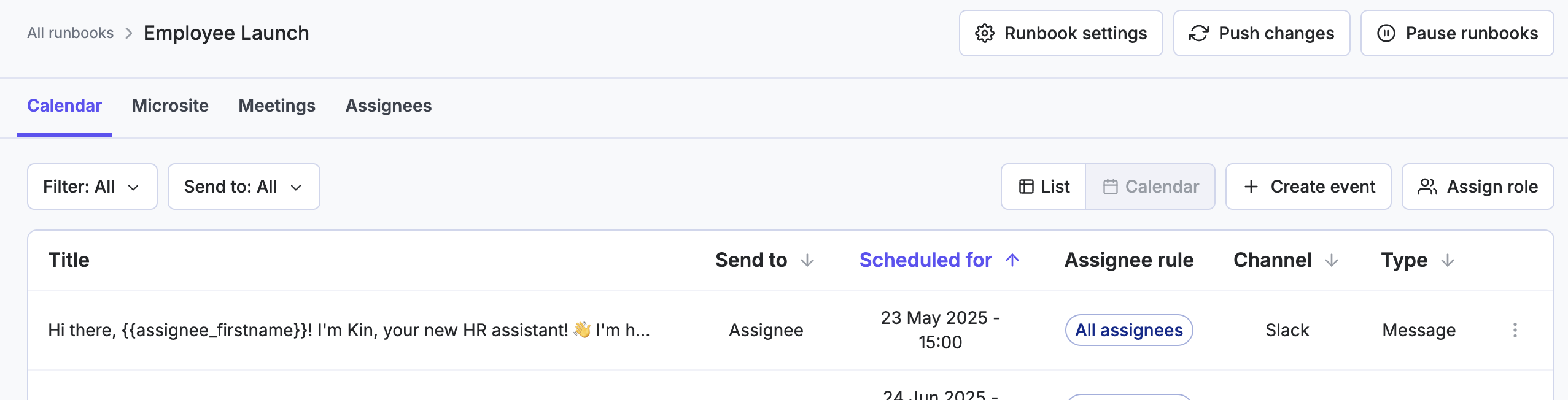
Navigate to Runbooks > select the relevant runbook and then head to 'Microsite'
Define the microsite structure. Decide whether content should be organized as separate pages, as blocks within one page, or as a single page for all assignees.
As guidance;
Use separate pages when content differs significantly by audience.
Use blocks within one page when the content is mostly similar but needs small variations by audience.
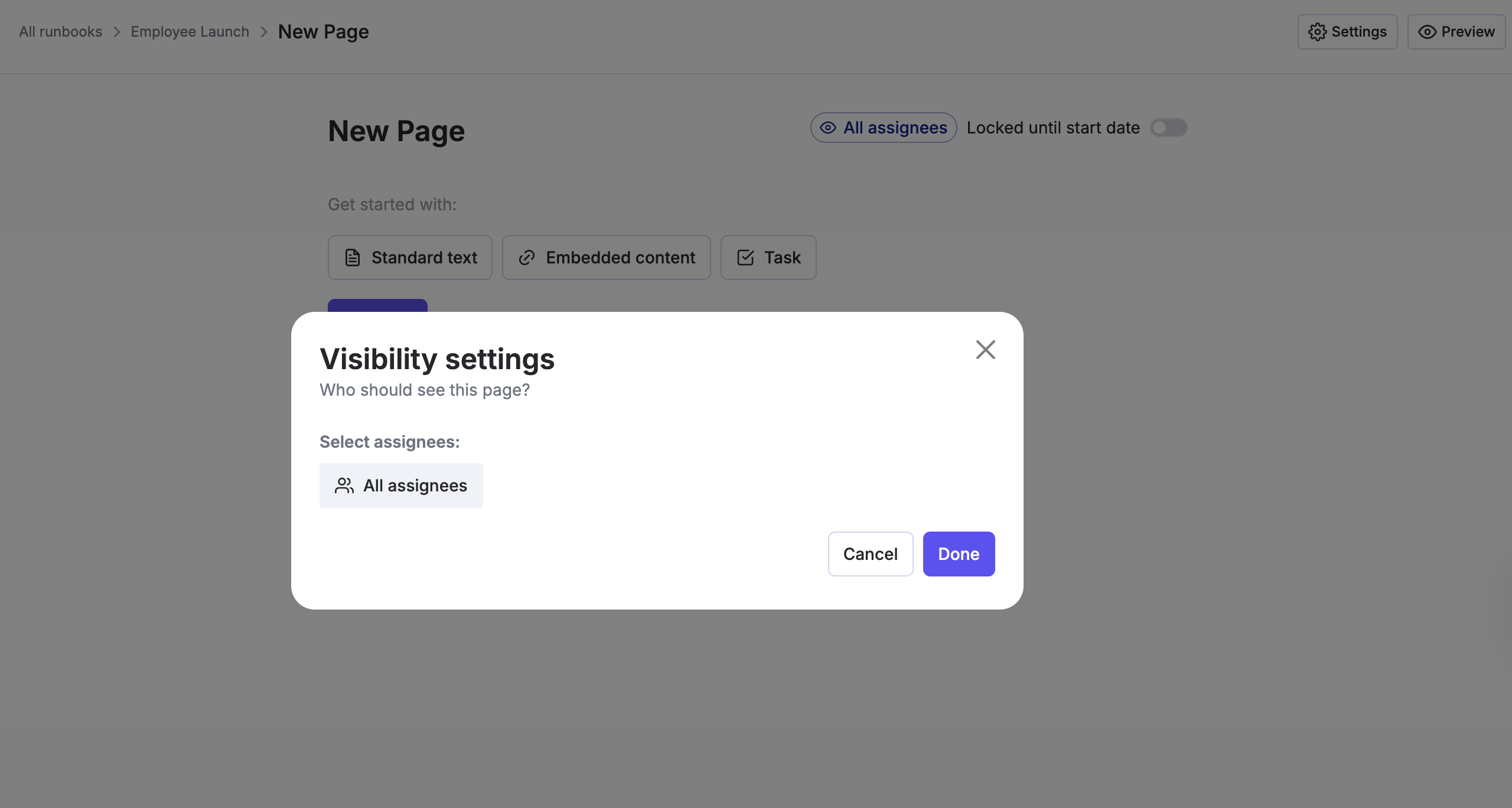
Configure visibility. Set access rules for each page and, where needed, each block. Once you've chosen the property or content type a block displays, configure its access rule. These rules should match the assignees the message will be sent to, otherwise, they won't be able to see the content.
A few callouts
* A recipient who doesn't match any rule will see nothing on the Microsite.
* Access rules hide content completely, so recipients won't know a page or block exists unless they match its rule.
* Task progress is personal. Each recipient ticks off their own tasks.
* Pages can be locked until the runbook start date
* Chapters can be locked until all previous tasks are 'complete'
3. Add the microsite link to the runbook message(s)
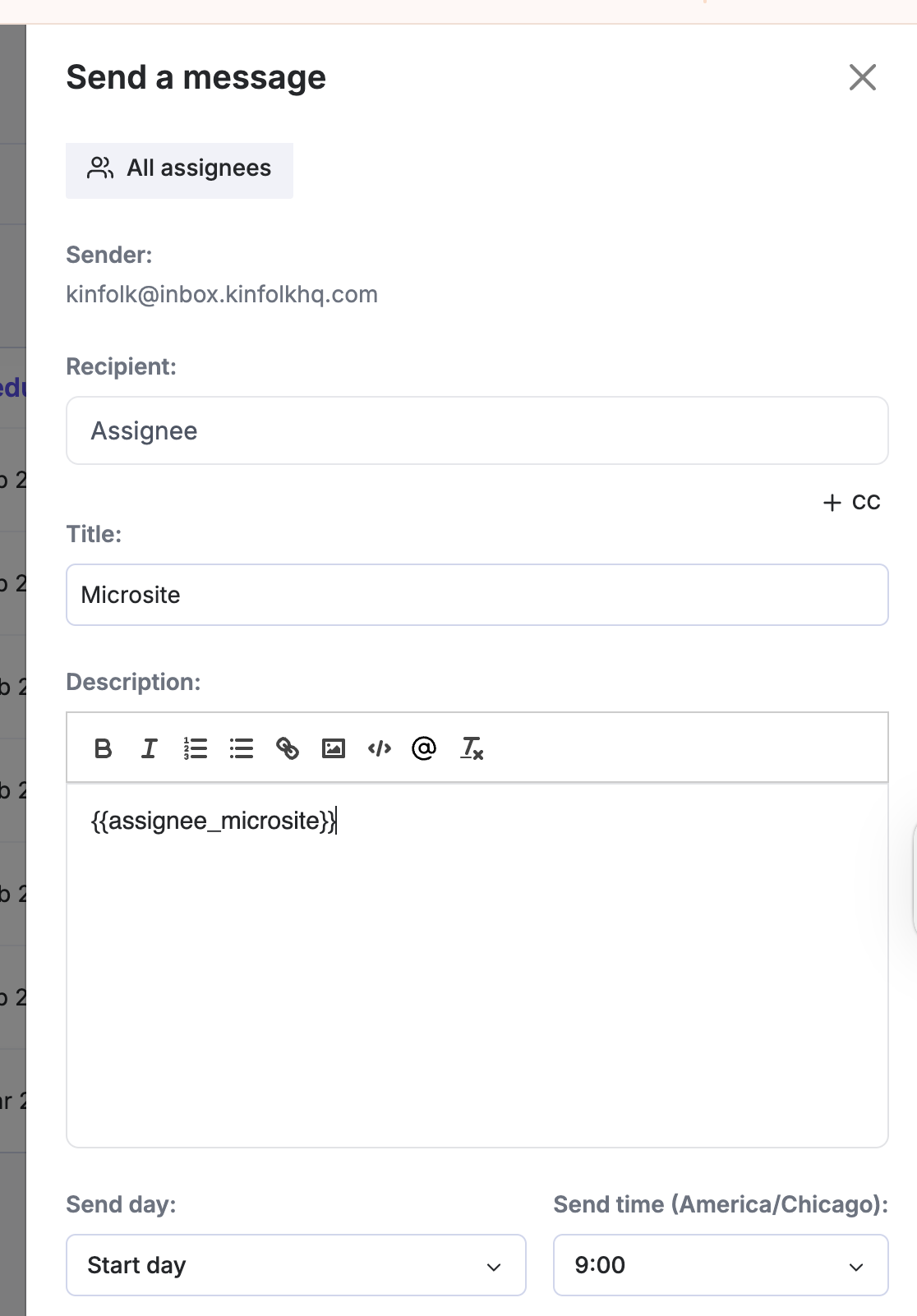
Create or edit a scheduled message for the runbook.
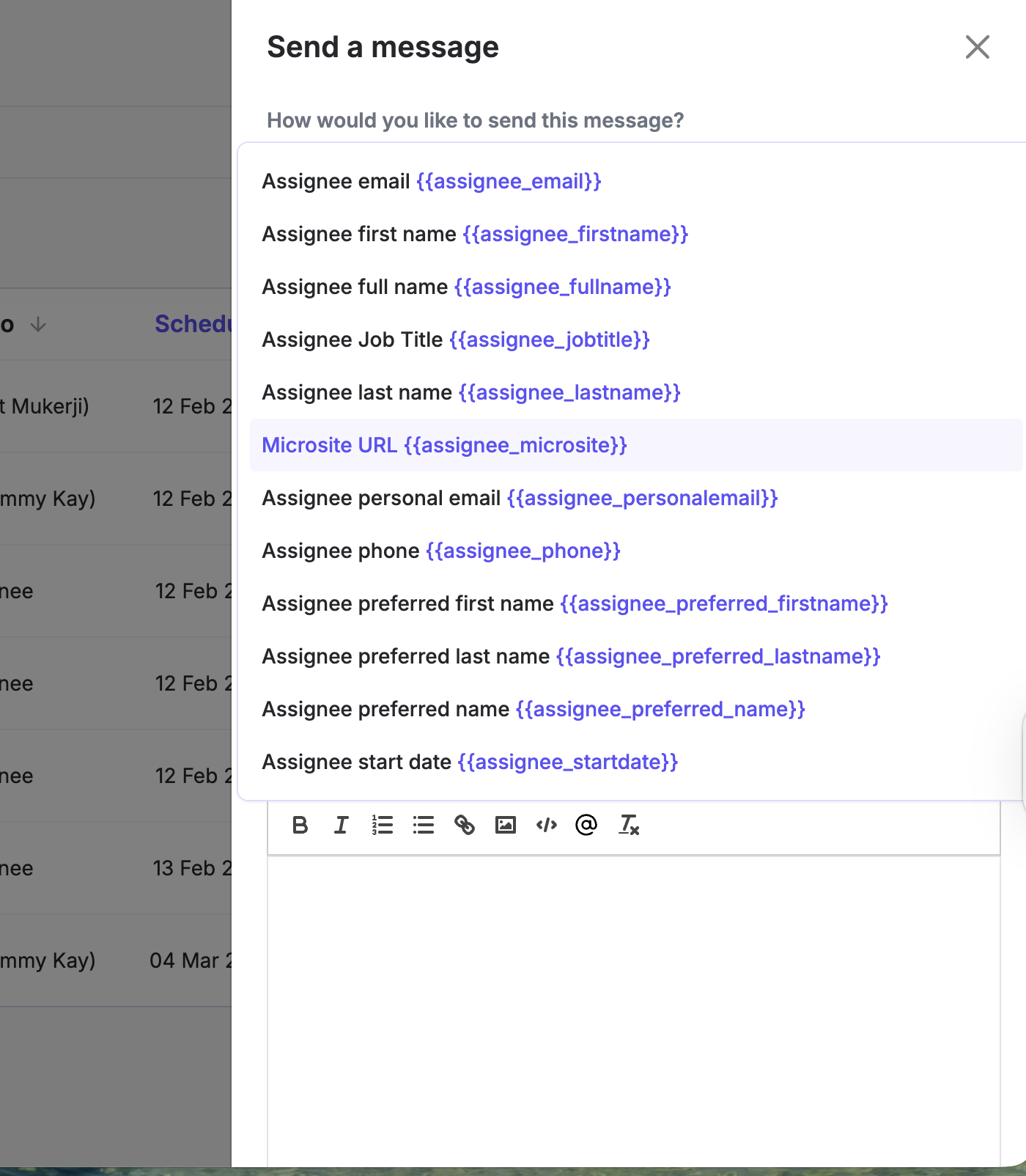
Insert the microsite link into the message.
The receiver of the runbook will only see the content if they match the filtering rules for the page/block.