Integrate Outlook Calendar
Last updated: September 10, 2026
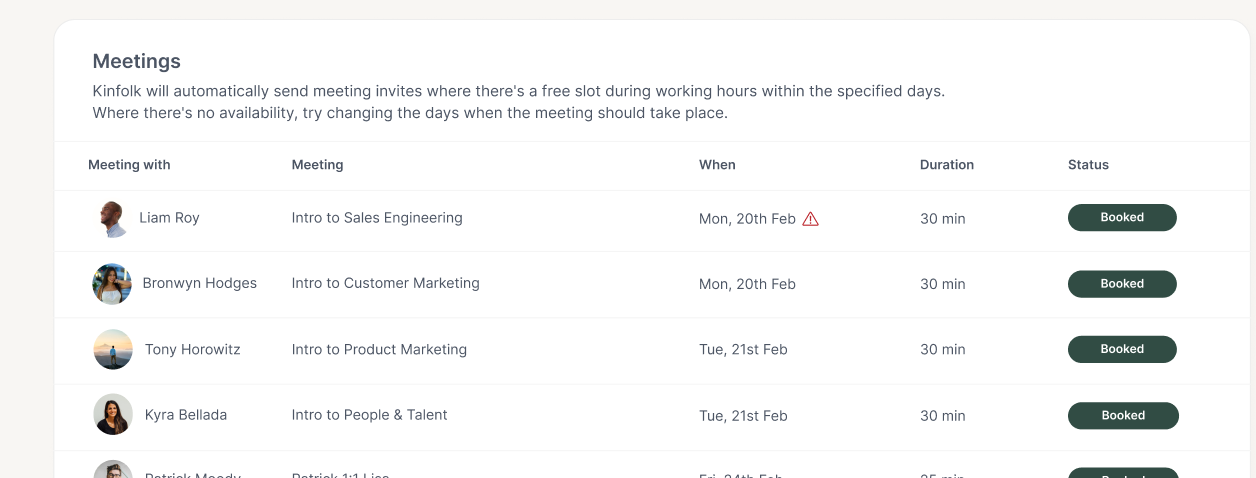
Kinfolk can create calendar events directly in your employees' Outlook Calendars, ensuring they don't miss important moments and have time blocked automatically.
What you can do with this integration
1-to-1 meetings Automatically schedule onboarding check-ins, manager introductions, and other individual meetings
Cohort meetings Book group sessions for new hire orientations, training, or team events
External meetings Schedule meetings with attendees outside your organization, such as candidates, partners, or vendors
How it works
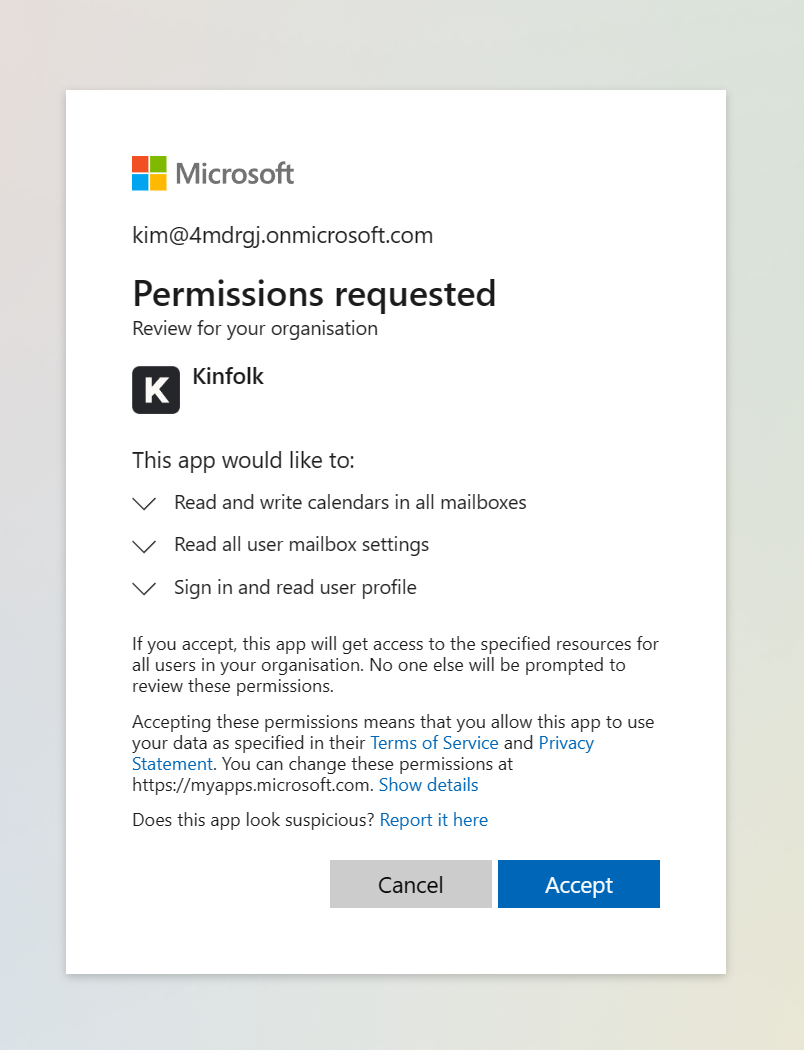
Kinfolk's Outlook integration asks for two permissions during installation.
Calendars.ReadWrite enables Kinfolk to locate availability and create new events within attendees' calendars.
MailboxSettings.Read is required to determine the timezone of attendees. This information is required to schedule meetings between 9 am and 5 pm, Monday to Friday, ensuring that events align with the participants' respective time zones.
What you'll need
Outlook Workspace admin access
Superadmin access in Kinfolk
Step 1
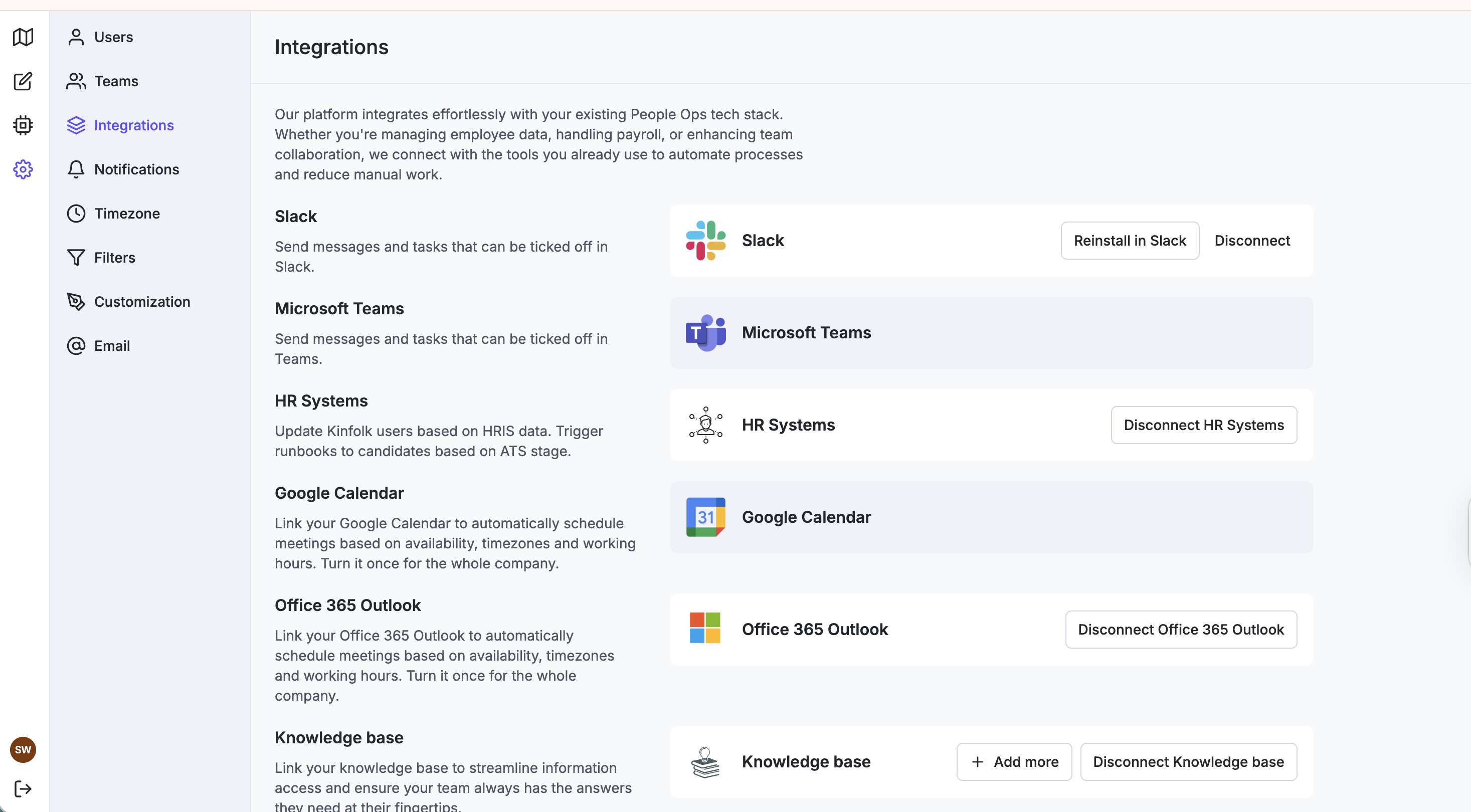
In Kinfolk, from the 'Integrations' page, 'Connect' Office356 Outlook.
Step 2
A new tab will open where you will be asked to log in with your Microsoft admin account Accept the permissions, then you will be returned to the Kinfolk Settings page
You can at any time review and change the granted permissions in your company account at https://myapps.microsoft.com/
Step 3
Done!