The Knowledge base: How to upload and sync
Last updated: October 2, 2026
Admins and SuperAdmins
The knowledge base is how you connect your company's internal documentation to Kinfolk so that Kin, the AI agent, can answer employee questions accurately. You link a source (like Confluence or Google Drive), import the documents you want Kin to use, and set access rules so the right employees get the right information.
A few things are worth knowing before you start. Connecting a source usually requires admin access to that system, so plan to involve IT or People Tech. Importing a document doesn't automatically put it to work — you enable it with the "In Use" toggle. And access rules cascade down your folder structure, so how you organise and import folders directly determines who can see what
Kin knowledge base supports:
Confluence
Google Drive
Notion
Sharepoint
OneDrive
Integration guides here,
Google Sites
Integration guide here
Slack canvases
How to load knowledge (Superadmin)
Log in to Kinfolk (link), and go to Settings > Integrations
Click the "Connect Knowledge base" button.
Find and select the knowledge base you want to connect to
Provide the required information—see what’s needed from the guides above
Click Connect
To test the knowledge base connection, let’s add some docs. Go to the Knowledge page (link), and click Import document.
A modal with a file picker should appear. Select the docs you want to import, click review, then submit
Docs are now being processed by Kin and will be available shortly.
A few callouts
Best practice is to ensure documents are not stored in a personal drive, but in a shared, accessible location, as employees will need to click through to the source for more information
Ensure the “In Use” toggle is turned ON post upload
You can always toggle this off if a document isn't relevant for a certain amount of time
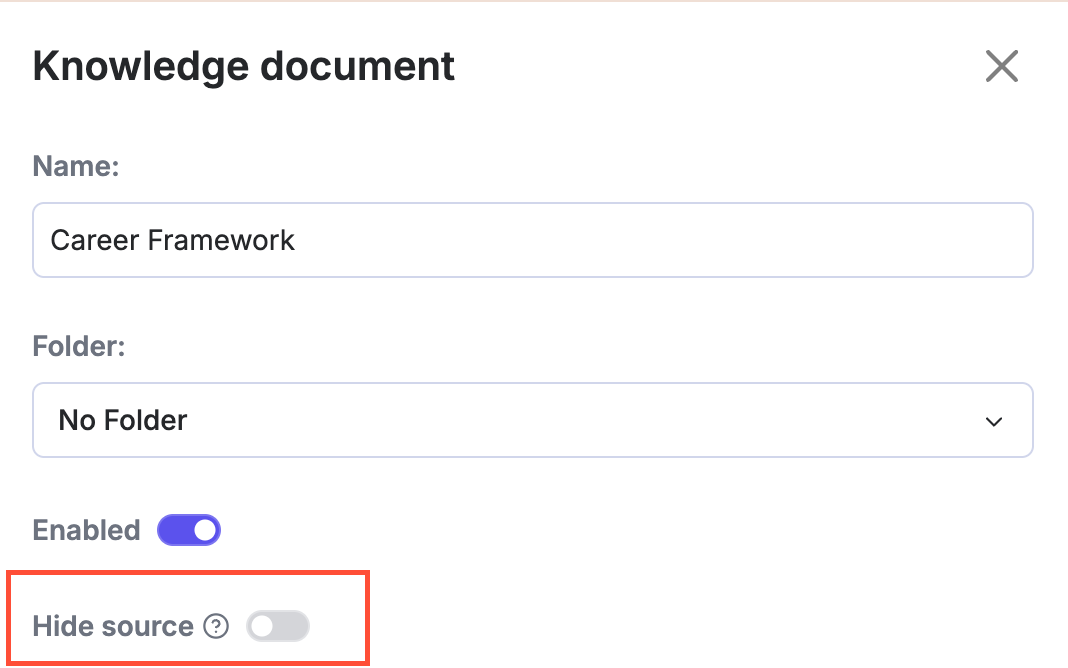
If you don't wish for a document link to be given to the employee, the "hide source" feature is available. This only applies to single sources, as folders don't have URLs attached to hide. Kin will still use the content to generate answers, but won’t surface the original document link. This is helpful if you are spinning up FAQs purely for Kin responses, but they aren't 'employee facing' documents
For uploaded documents, as they live locally on a device, you may also choose to link to another URL. This means each time the source is used, the accompanying URL will be surfaced.

How to set access rules
After importing knowledge, you will need to set the access rules on the resources. These rules let Kin know who this document/information is intended for when it's retrieving information, as Kin knows who each employee is (through the HRIS).
Apply the appropriate access rules to the resource.
A few callouts
Access rules cascade down the folder structure in Kinfolk
If you import a top-level folder and set its access rule, any sub-pages and sub-folders will inherit the same rule, as Kin will apply the top-level access rule when searching for relevant information.
How the knowledge base stays up-to-date
Once you connect a source like Google Drive or Notion, Kin keeps it in sync automatically — you don't have to re-upload documents when they change. On a regular schedule, Kin checks your connected folders for new, updated, and removed files and brings its copy up to date, so employees get answers from the current version of your content.
A few callouts
Two things are worth understanding up front, because they're the most common source of "is this broken?" questions:
A folder and the documents inside it sync separately, so some documents can still show Refreshing after the folder has finished. That's normal.
Sync is not instant. Changes are added to a processing queue and take effect a short while later, especially for large folders. A folder showing "18/19 processed" for a few minutes is normal; being stuck there for many hours is not, so let us know
If you've just edited an article and want it live sooner than the next automatic sync, you can trigger a manual sync (below).
What each status means
Every document on the Knowledge page shows a status, so you can see at a glance what Kin is using and what needs your attention.
Status | What it means | What to do |
|---|---|---|
Pending | Kin hasn't processed the document yet. | Nothing. Check back shortly. |
Refreshing | Kin is picking up changes from your source. | Nothing. This usually takes a few minutes. |
Current | Kin is using the latest version of the document. | Nothing. |
Update failed | Kin couldn't load the latest version. It keeps answering from the previous version, so employees still get answers. | Check the tooltip on the status. If it says Kin can't download the file, check the file's sharing settings. Otherwise, refresh the document. |
Failed | Kin couldn't load the document at all, so it isn't used in answers. | If it shows "Failed: No access", check the file's sharing settings, then refresh the document. |
A few callouts
"Last synced" at the top of the Knowledge page shows when Kin last checked your sources, in your organization's time zone.
Use the status filter to find every document that needs attention, including documents inside folders.
The most common cause of "Failed: No access" or "Update failed" is a change to the file's sharing settings, or a file moved to a personal drive. When you restore access, Kin picks the file up again on the next nightly sync. To try straight away, refresh the document.
When you refresh a document, Kin tells you whether the refresh started, worked or failed.
If a document stays on Failed or Update failed after you've checked its sharing settings, raise a ticket with us in your shared Slack channel and we'll help.
How to use it — manually refreshing a document or folder
Confirm the exact button label and location against the live product before publishing — the action exists, but I haven't verified the wording.
Go to the Knowledge page in Kinfolk admin.
Find the document or folder you've changed.
Use the sync / refresh control on that item to trigger a sync immediately, rather than waiting for the next scheduled sync.
Watch the item's status. It shows Refreshing while Kin checks the source, then Current when Kin is using the latest version.
To refresh everything at once, sync at the folder (connection) level rather than document by document.
A few callouts
After editing an article you want live quickly, manually sync that specific document instead of waiting for the scheduled run.
Check that the document's status shows Current to confirm a change was picked up.
For a big content update, syncing the parent folder is faster than syncing files one by one.
Extra information
Automatic sync runs on a schedule (every 24 hours). A manual sync is only needed when you want a change to take effect sooner.
Removing a document from the source drive removes it from Kin on the next sync, so Kin stops referencing outdated material. (If a removed document keeps appearing after a sync, that is worth reporting — it was a real bug in the past.)
If a sync appears stuck for many hours (counter not advancing), report it — normal processing is minutes, not hours. However, sometimes an entire page refresh also helps.