Creating and Configuring Teams in the Service Desk
Last updated: September 16, 2026
Superadmins and Admins
A Team is a group of users responsible for handling specific categories of requests or content within Kinfolk, and is typically aligned to functional areas such as Benefits, Payroll, People Operations, etc.
Teams do three things: they organise people, they route requests to the right group, and they control who can see which content.
Few behaviours are worth knowing up front. A team only receives notifications for the categories it owns, so requests don't leak across teams. When a request is escalated, what happens next depends on configuration: if the team has a default escalation user set, that person becomes the assignee automatically; otherwise, other team members can see the request when they log in. A user can belong to multiple teams, with no limit, so overlapping responsibilities are fine. And when an Admin uploads content, it's automatically owned by that Admin's team(s) — only the owning team can see and manage it, so ownership directly controls content visibility.
How to create a team
Create a team and give it a name that reflects its remit (e.g. "People Ops Support").
Add the users who should belong to the team.
Assign the categories the team owns (e.g. HR policies, leave management). The team will then receive notifications only for those categories.
Configure the team's Slack notification channel so escalations and updates surface where the team works (remember @ Kin must be added to the channel to be searchable)
How to assign categories to teams
Teams will only get requests and notifications from, and make edits to, categories they own.
For example, in the screen recording below, 'People Ops' has two members; Benedict and Christine. The team owns 1 category. Here, notifications are configured to be sent to a Slack channel for Christine and Benedict to pick up. When Benedict and Christine log in to Kin, they will see all conversations under the category listed.
Teams and workflows, knowledge, runbooks
Teams also control visibility and ownership of content, such as knowledge items.
When an Admin uploads content, it is automatically assigned to the teams that the admin belongs to. A Superadmin can also create or upload something and nominate an owning team.
This means:
Those teams are considered the owners of the content, workflow or runbooks
The content is visible and manageable by those teams only.
How teams are reflected in reporting
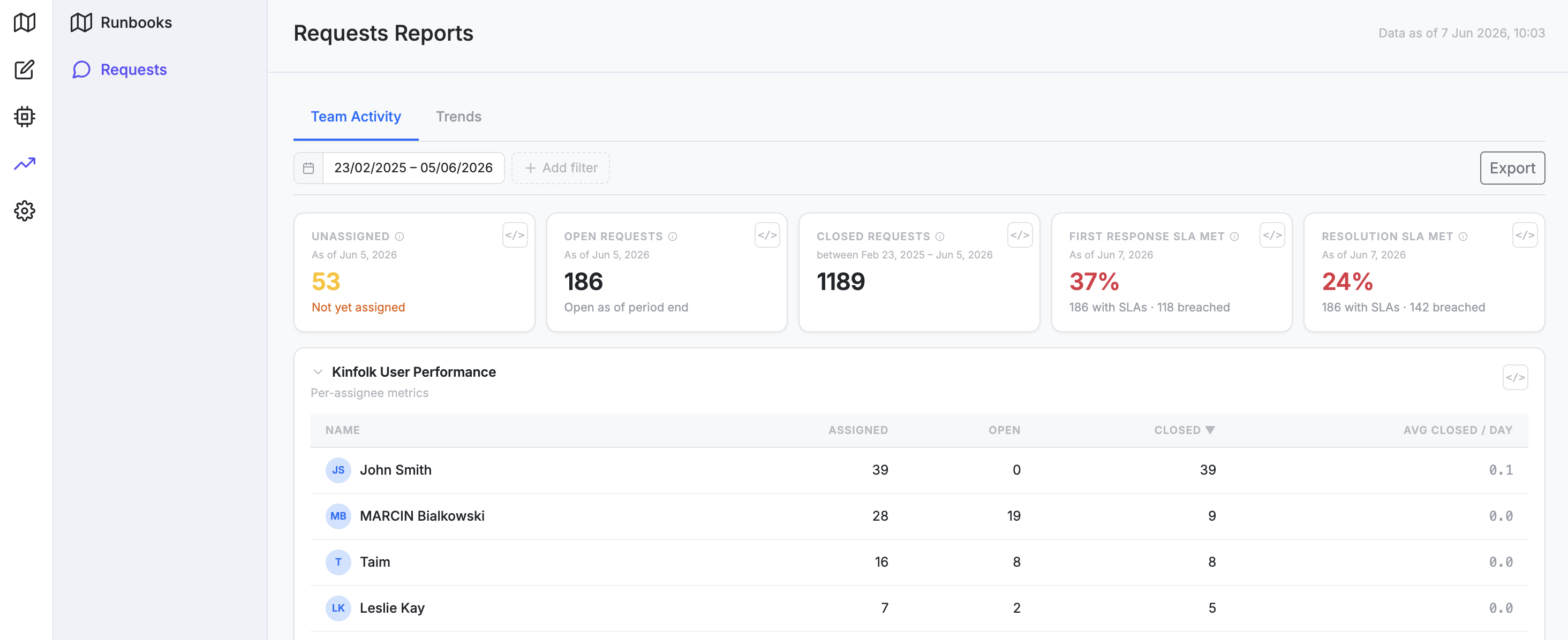
The level at which 'Teams' are configured is important for reporting, as on the 'Requests Report' page, metrics will be reflected at the team level to understand performance, open requests, etc.
A few callouts
A user can belong to an unlimited number of teams.
Content is visible only to its owning team(s) — there's no cross-team visibility of uploaded content unless ownership is shared.
Teams only receive notifications for categories they own; make sure category ownership is complete, or some requests may go unnoticed.
Reporting is scoped to team configuration, so metrics on the Requests Report reflect however teams are set up — misconfigured ownership will skew the numbers.
If the team has a default escalation user named in the "Escalate to" box, that user automatically becomes the assignee and is notified directly; the rest of the team will be able to see the request when they log in.