Steps to creating an Offboarding Runbook
Last updated: May 20, 2026
Admins + SuperAdmins
Offboarding runbooks allow you to automate the employee offboarding experience. Once configured, they automatically assign and launch a structured workflow for any employee whose termination date or last working day is recorded in Kinfolk — no manual intervention needed.
Getting Started
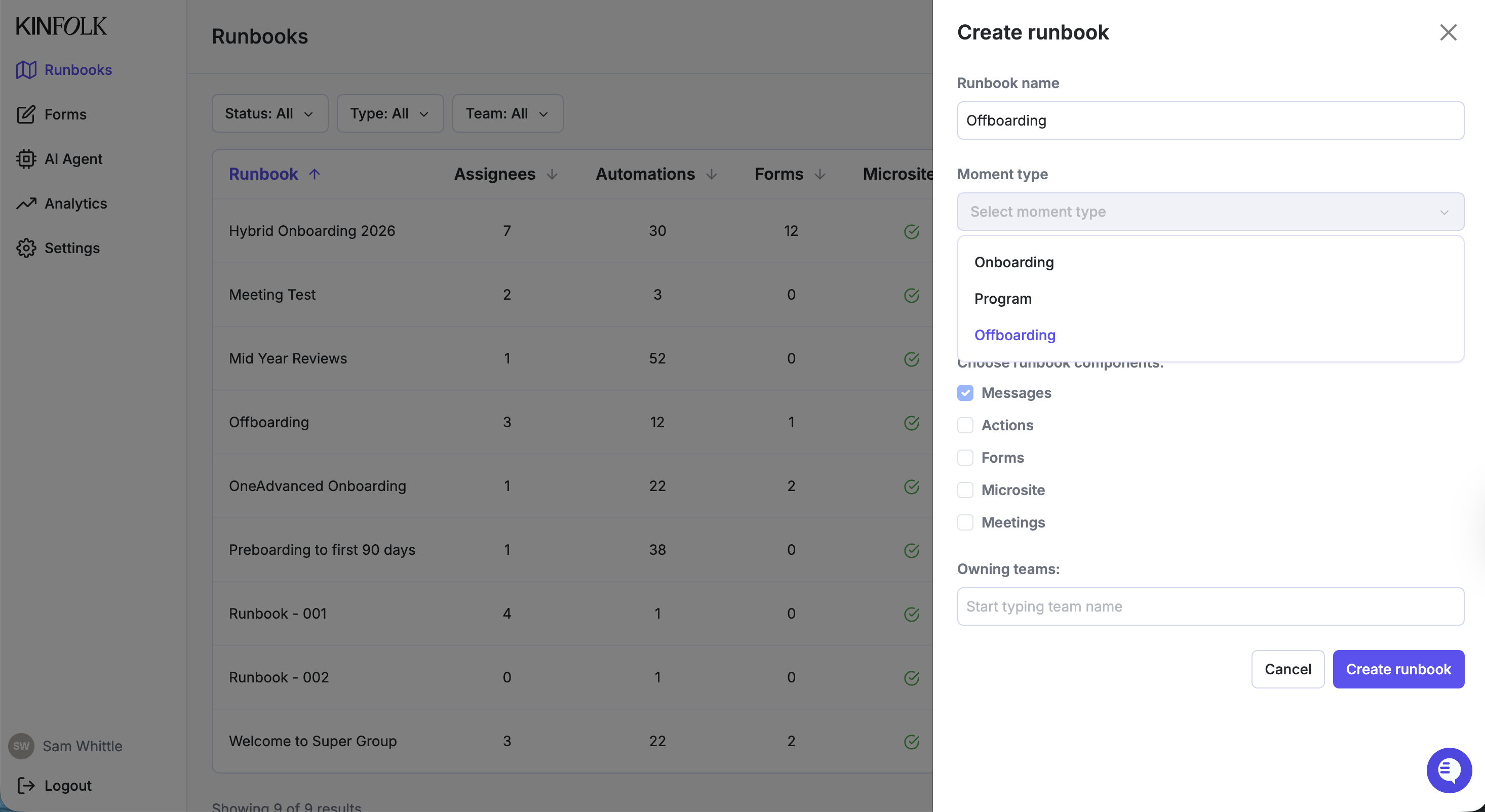
1. Create an Offboarding Runbook
Navigate to Runbooks
Click Create Runbook
Set the Type to Offboarding
Give your runbook a name and configure the content — messages, actions, forms, meetings, and microsite — as you would for any other runbook
2. Configure the Trigger
In the runbook settings, depending what your organisation uses in the HRIS, select the date the Runbook automations will be anchored to.
Anchor Date Field | When it triggers |
|---|---|
Termination Date | When an employee's termination date is set or updated |
Last Working Day | When an employee's last working day is set or updated |
The anchor date becomes Day 1 of the runbook for that employee. All tasks, messages, and meetings are scheduled relative to this date.
3. Enable Auto-Assignment
Toggle on Auto Assignment in the runbook settings. Once enabled:
Apply a filter (optional): Scope the runbook to a specific group of employees — e.g., only a certain department, location, or employment type. If no filter is set, the runbook applies to all employees.
Enable Auto Activation (optional): When turned on, meetings and scheduled items are automatically booked at assignment time — no additional step needed.
How Triggers Work
Offboarding runbooks are triggered automatically when a user's Termination Date and Last Working Day (optional) is set or updated — typically via your HRIS integration.
The flow is:
HRIS sync writes a termination date and the last working day to the employee's profile
Kinfolk checks all offboarding runbooks with Auto Assignment enabled
Each runbook's filter is evaluated against the employee (if a filter is set)
A personal runbook instance is created for any employee who matches
The runbook start date is set to the value of the anchor date field
If Auto Activation is enabled, all scheduled meetings are booked automatically
Note: The trigger fires whenever the anchor date field is written — including updates to an existing date. If a termination date changes, the runbook start date updates accordingly.
Configuration Reference
Setting | What it does |
|---|---|
Type = Offboarding | Marks the runbook as field-triggered |
Anchor Date Field | Which date sets the runbook start — Termination Date or Last Working Day |
Auto Assignment | Automatically assigns the runbook when the trigger field is set on a matching employee |
Filter | Limits auto-assignment to employees matching specific criteria. Leave blank to apply to everyone. |
Auto Activation | Automatically books all scheduled meetings at assignment time |
Catch up Comms | If someone is added to the runbook manually or automatically, in less time than when the first comms is due to be sent, this message will still be send and won't be 'skipped'. |
Manual Assignment
If you need to assign an offboarding runbook to employees manually — for example, a retroactive assignment or a planned reduction-in-force — use Bulk Assign from the runbook detail page.
Step 1 — Set termination dates on each employee
Before assigning, each employee must have their Termination Date and/or Last Working Day set. Without these dates, the runbook has no anchor date to schedule tasks against.
To set these dates:
Go to Settings → Users
Click on the employee's row to open the Update User modal
Fill in the Termination Date and/or Last Working Day fields
Click Save
Repeat for each employee you intend to assign.
Step 2 — Run Assign
From the runbook assignees page, click Assign Users and choose one of the following options:
Option | Use when |
|---|---|
Filter by attribute | Assign to all employees matching a filter (e.g., a specific department) |
Select specific users | Provide an explicit list of employees |
Assign to all | Assign to every active employee in the organization |
Set a start date | Override the anchor date with a specific date for all assigned employees |
Bulk assignments run asynchronously in the background and track progress including any failures.